Events
The Events Page serves as a centralized hub for viewing all upcoming and past events hosted by Evergreen Farms. It provides a clear and organized overview of each event, including important details such as the event name, location, schedule, status, and type (e.g., free or paid).
✅ Key Features:
- Event Details:Each event displays key information including a thumbnail image, event name, location, scheduled start/end date & time, current status (e.g., Published, Active, Completed, Cancelled), and event type (Free or Paid).
- Pagination:
- Use the Prev and Next buttons at the bottom of the table to navigate through pages when there are more than 10 records.
- You can change the number of rows displayed per page by selecting 5, 10, 15, or 20 from the “Rows per page” dropdown menu.
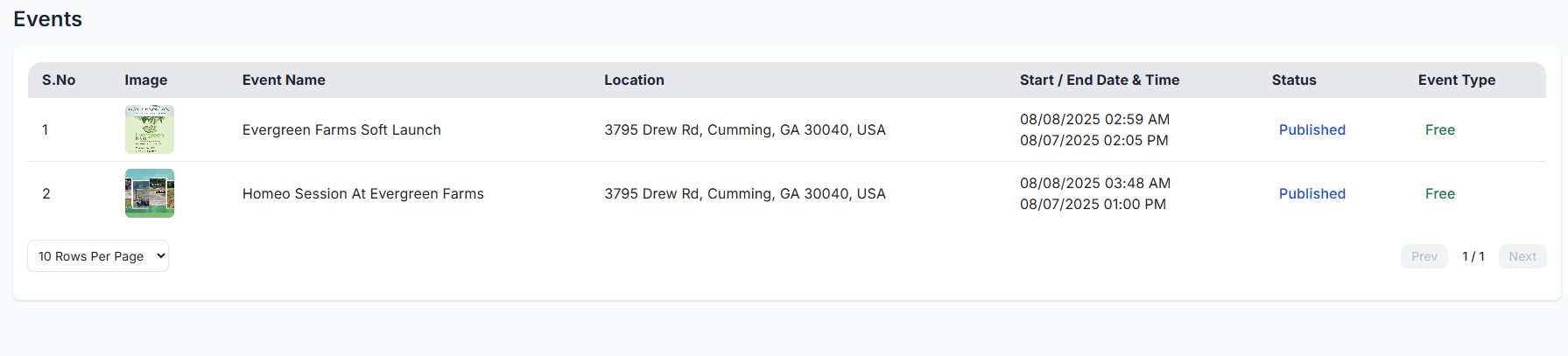
The Events Dashboard offers a clear snapshot of all your upcoming, active, completed, and cancelled events. This overview helps you manage schedules, track event types, and monitor attendance at a glance.
- Total Events: Displays the total number of events created, regardless of their current status.
- A detailed table below displays specific event information including name, location, type (Free or Paid), status, and timing.
✅ Key Features:
- When you click on an individual event from the Events List, you are taken to the Event Details Page. This page provides a comprehensive overview of the selected event, including visuals, attendee data, and event specifics.
- Event Information (Right Panel):This section displays essential details such as the Event Name, full Address, Start and End Date & Time, and whether the event is Free or Paid. It also shows the maximum Capacity for attendees, the current Status (e.g., Published, Active, Completed, or Cancelled), and the Total number of Attendees. Additionally, you can view a breakdown of Adults and Children attending and read a brief Description of the event.
- Media Preview (Left Panel):This area showcases image and video thumbnails associated with the event. Users can click on these thumbnails to preview the media in a larger carousel-style layout.
- Registered Users Table:A table lists all individuals who have registered for the event. For each attendee, the Full Name, Email, and Phone Number are displayed. There is also a convenient option to copy email addresses for quick communication.
- Back ButtonAt the bottom of the page, a Back button is available to navigate easily back to the Events page.
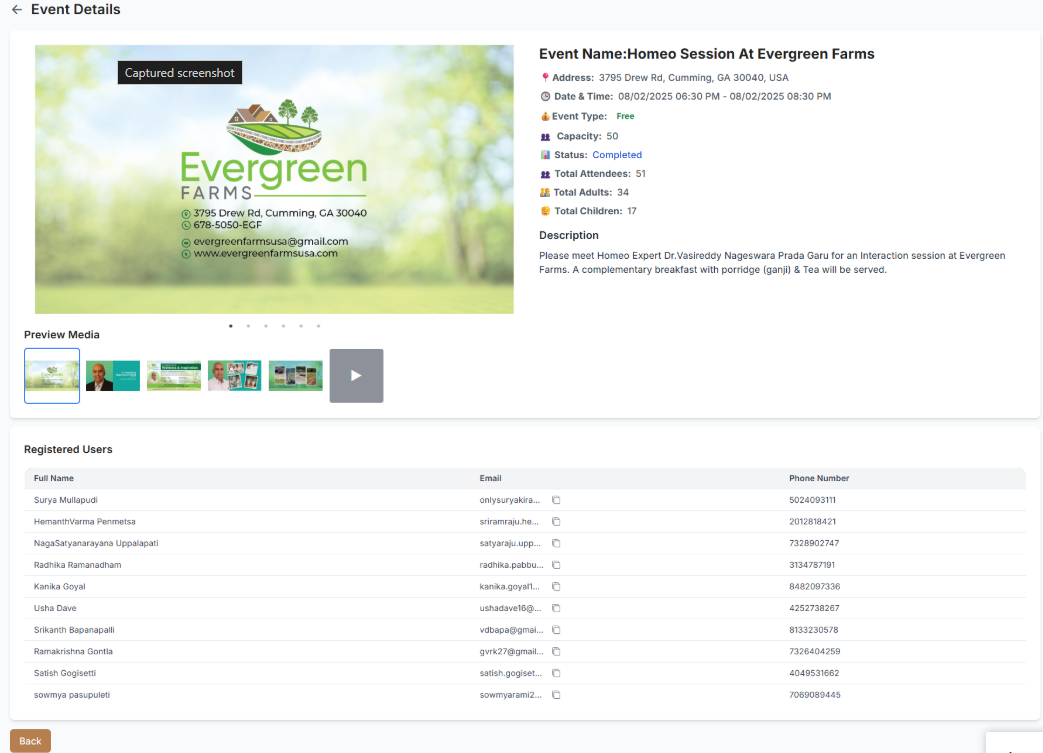
The Event Details Page shows all important information about a selected event, including its name, location, date and time, type (Free or Paid), capacity, and current status (Published, Active, Completed, or Cancelled). It displays total attendees with a count of adults and children, a short event description, and media previews like images or videos. A table lists all registered users with their name, email, and phone number, with an option to copy emails. You can also return to the Events List using the back button.
Navigate through partner records efficiently:
- Use the rows per page dropdown (▼) to select display density
- Default shows 10 rows per page (e.g., 5, 10, 15, 20)
- Use pagination controls when you have more vendors than fit on one page (e.g., Prev, Next)
