Labor Type
The Labor Types module allows you to define and manage different categories of labor roles within your organization. It helps in maintaining standardized base rates, tracking labor-related data, and organizing workforce roles efficiently for accurate billing and job assignment.
✅ Key Features:
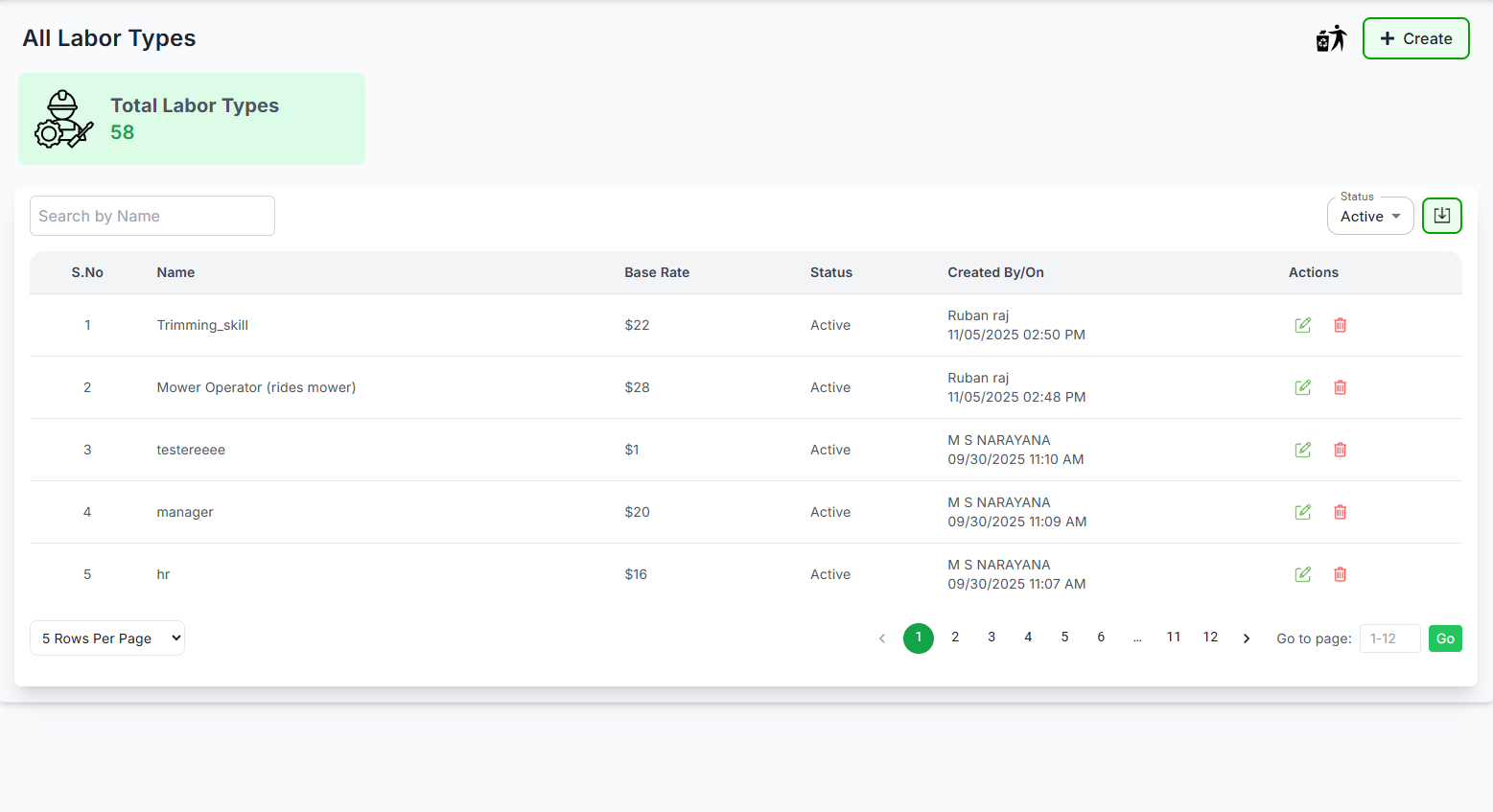
- Total Labor Types: Displays the total number of labor types currently available in the system.
- View Labor Types: Lists all labor types with details like name, base rate, status, and creation information.
- Search by Name: Quickly locate a specific labor type by entering part of the name in the search bar.
- Base Rate: Displays the wage rate associated with each labor type.
- Status: Indicates the current state of the labor type (e.g., Active or Inactive).
- Created By/On: Shows the name of the person who created the labor type and the exact date and time.
-
Edit Labor Type: Click the "
 " icon under the
"Actions" column to modify labor type details.
" icon under the
"Actions" column to modify labor type details.
-
Delete Labor Type: Click the "
 " icon under the
"Actions" column to remove an unwanted labor type.
" icon under the
"Actions" column to remove an unwanted labor type.
-
Deleted Labors: Click "
 " icon to see the list of
deleted labors
" icon to see the list of
deleted labors
- Create Labor Type: Click the "+ Create" button to add a new labor type with its base rate and other details.
Quickly locate specific partners using the Search By User Name feature:
- Enter any part of the partner's username
- Results will filter automatically as you type
- Clear the search field to view all partners
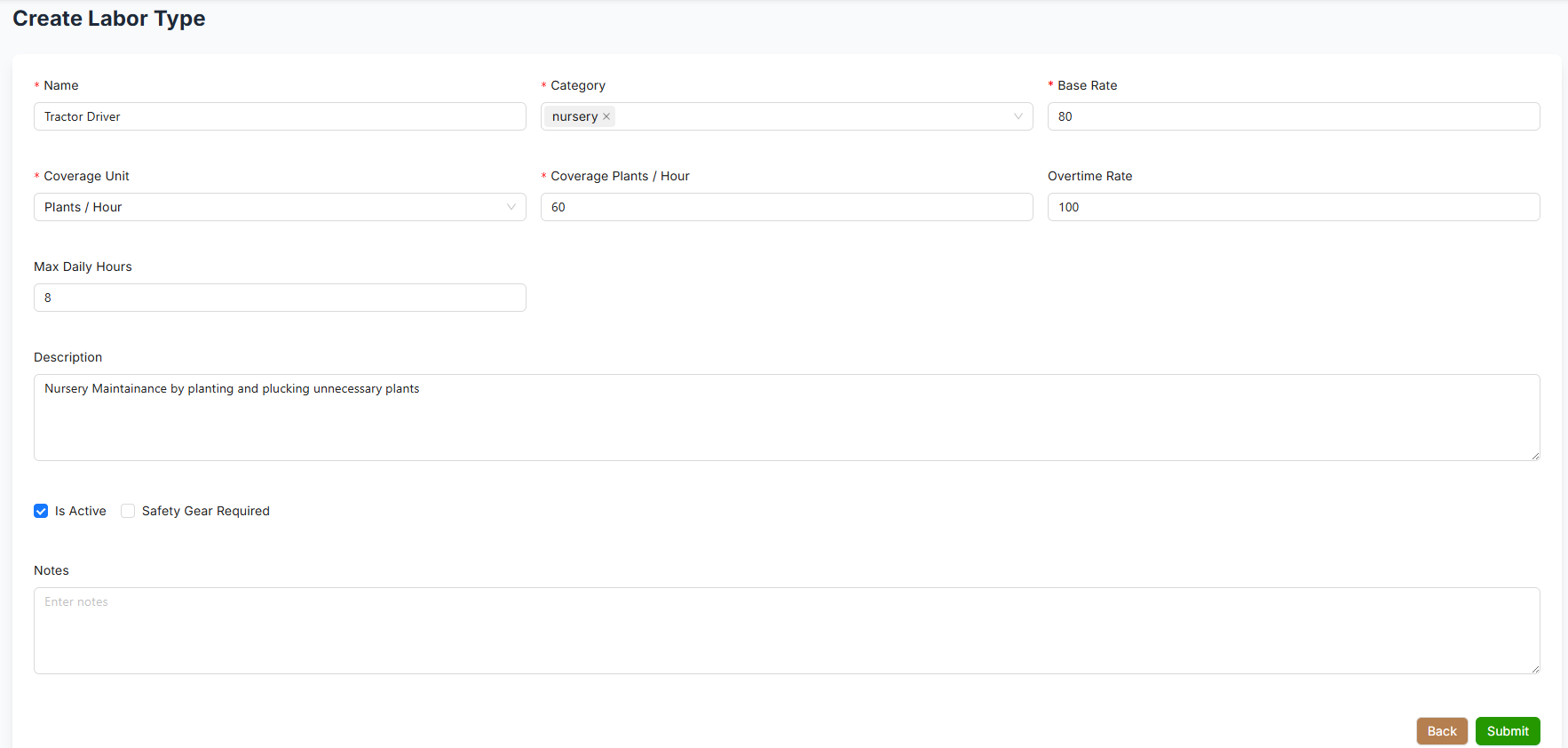
To add a new labor type, follow these steps:
- Access the Creation Form: Click the "+ Create" button to open the labor type creation form.
-
Fill in the Required Details:
- Labor Type Name: Enter a unique name (e.g., "Tractor Driver").
- Category: Select the appropriate category (e.g., "Nursery").
- Base Rate: Specify the wage rate (e.g., 60).
- Coverage Unit: Choose the unit of work (e.g., "Plants / Hour").
- Coverage: Enter the coverage rate (e.g., 60 plants/hour).
- Overtime Rate: Specify the overtime wage rate (e.g., 100).
- Max Daily Hours: Input the maximum hours per day (e.g., 8).
- Description: Provide a brief description (e.g., "Nursery Maintenance by planting and plucking unnecessary plants").
- Status: Check "Is Active" to enable; optionally check "Safety Gear Required".
- Notes: Add any additional notes (optional).
- Submit: Click the Submit button to save. Use Back to return without saving.
Ensure all required fields (marked with *) are completed before submitting.
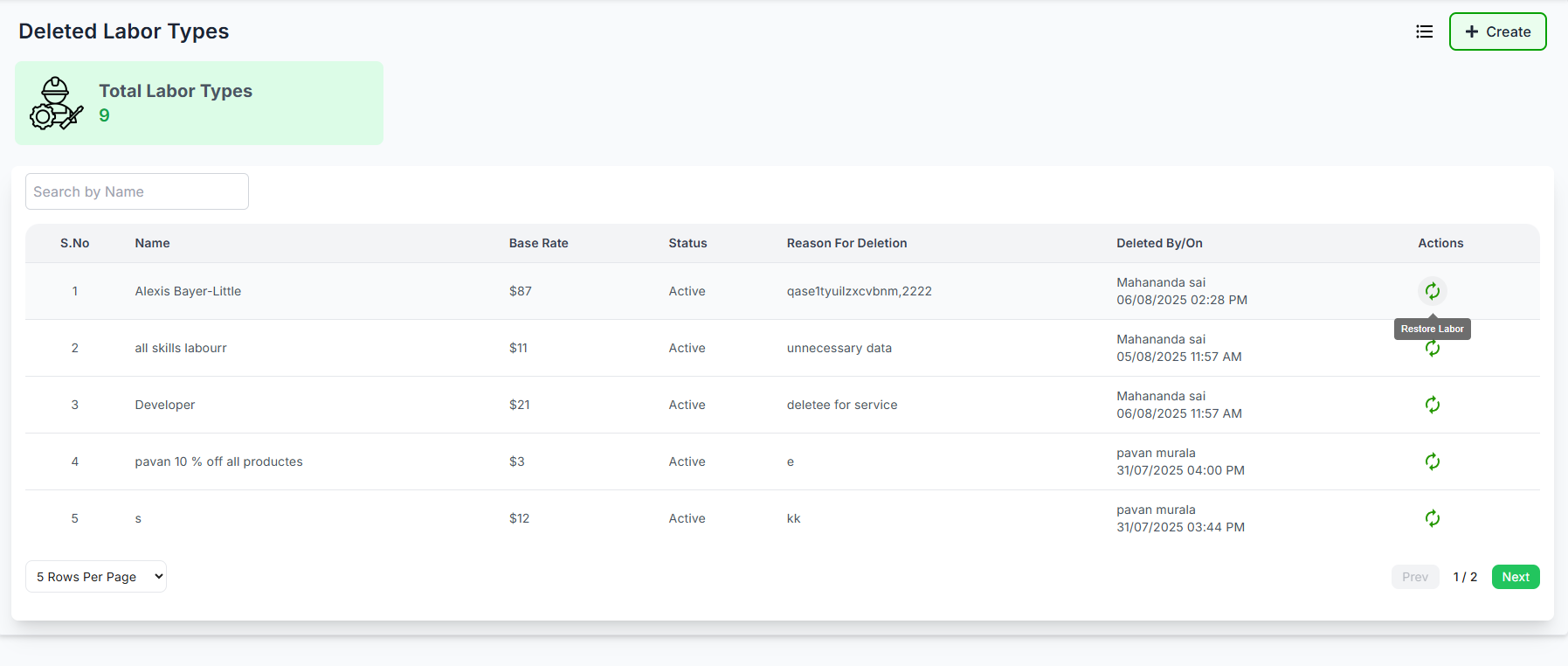
Click the ""
icon to elegantly view the list of deleted labors, where you can also
effortlessly restore them as required.
- Search by Name: Quickly locate a specific labor type by entering part of the name in the search bar.
- Click the "
 " restore icon to recover a deleted labor.
Navigate through partner records efficiently:
- Use the rows per page dropdown (▼) to select display density
- Default shows 10 rows per page (e.g., 5, 10, 15, 20)
- Use pagination controls when you have more vendors than fit on one page (e.g., Prev, Next)
