Enquiry Management
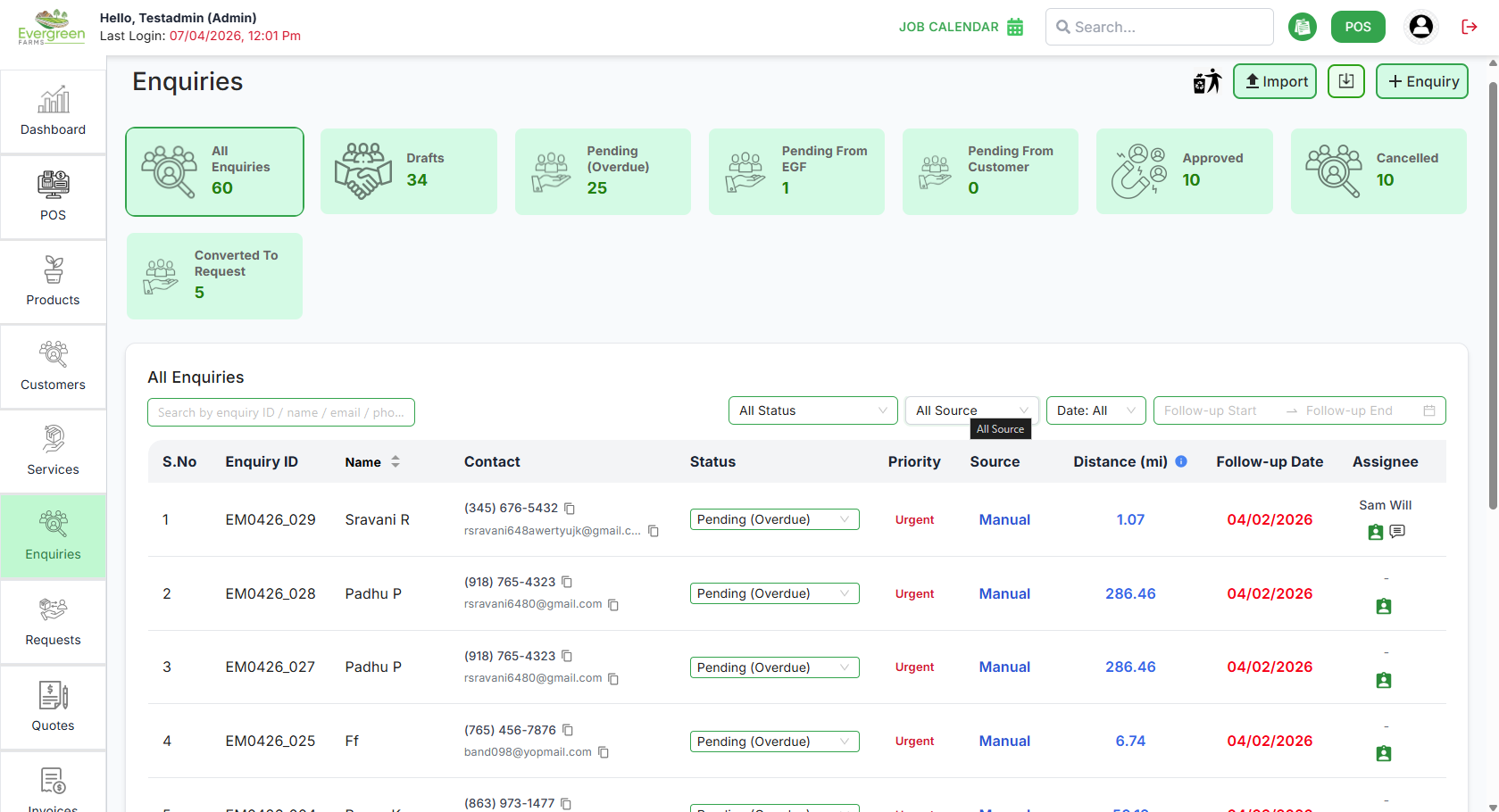
This page allows you to manage customer enquiries efficiently. Enquiries help track customer interest, requested services, follow-ups, and approval status.
Enquiry Records
What you can do here:
- View enquiry summary cards: All Enquiries, Pending, Follow Up, Approved, and Cancelled.
- Click on any summary card to filter enquiries by status.
- Search enquiries using Enquiry ID, Name, Email, or Phone.
- Filter enquiries by: Status, Date, and Follow-Up Date Range.
- View detailed enquiry information including: Customer Details, Status, Follow-Up Date, and Created Date.
- Update enquiry status directly from the Status dropdown.
-
Use action icons to:
- Edit enquiry
- Delete enquiry
- Schedule follow-up
- Convert to next stage (if applicable)
- Control displayed records using Rows Per Page and pagination controls.
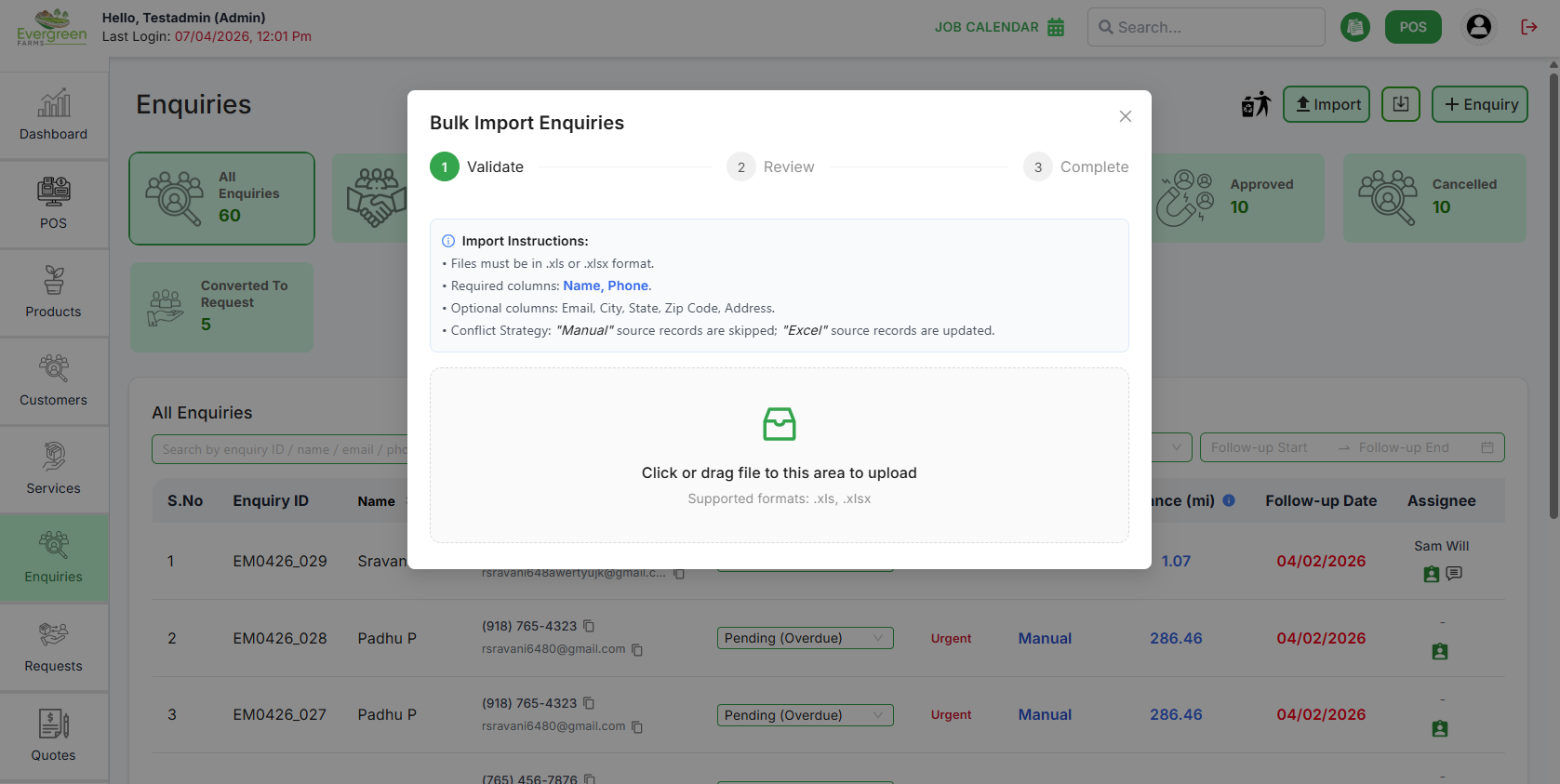
- Use the Import button to upload a CSV file containing enquiry data, allowing for bulk creation or updates of enquiries in the system.
- The system will validate the imported data and provide feedback on any errors or successful imports, ensuring data integrity.
- When importing, ensure the CSV file is formatted correctly with the required fields to avoid import errors and ensure successful data integration.
Create New Enquiry
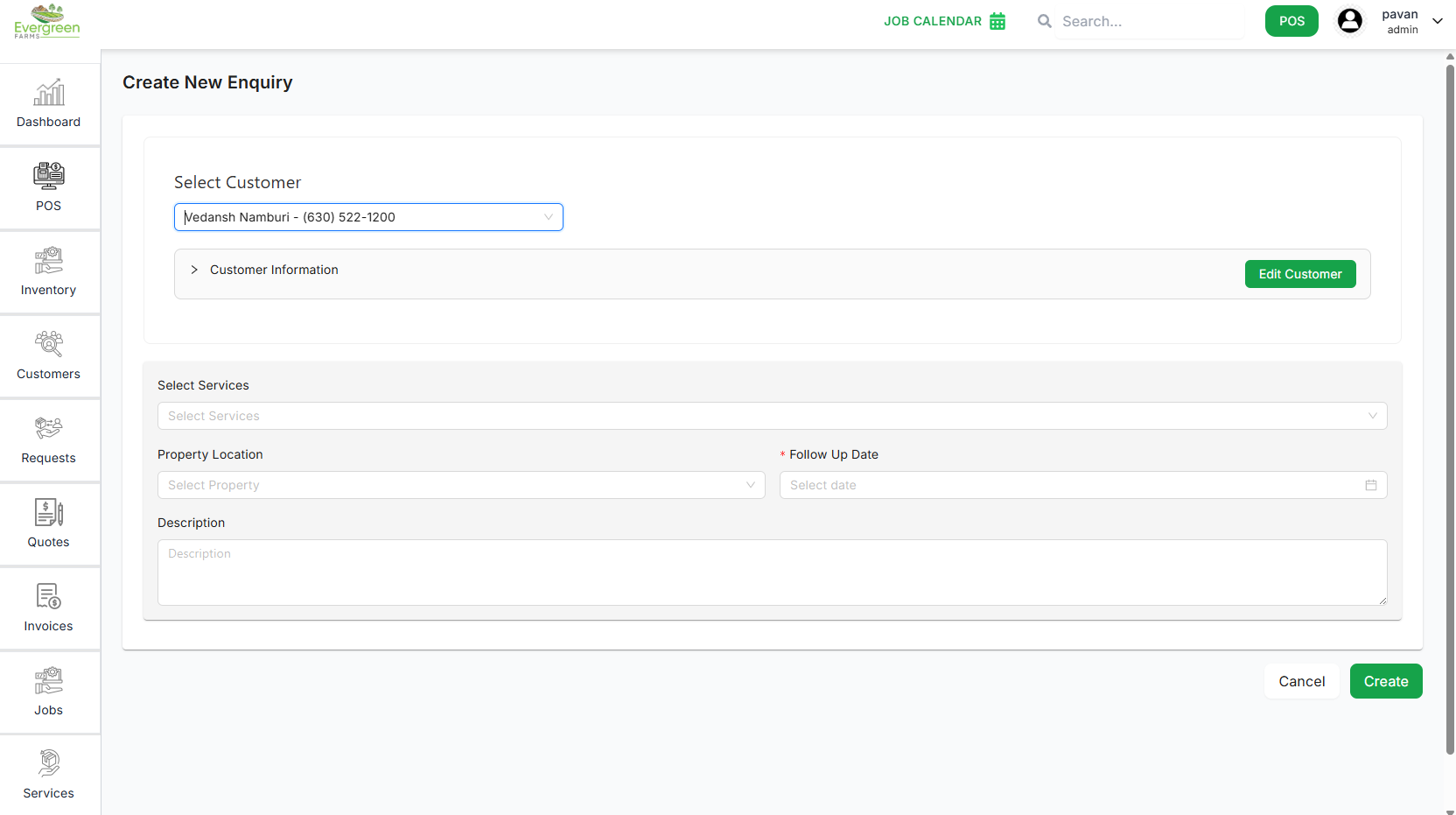
- Select an existing Customer from the dropdown.
-
Customer Information auto-populates:
- First Name
- Last Name
- Phone Number
- Click Edit Customer if updates are required.
- Select one or multiple Services.
- If “Other” is selected, provide a Custom Service Name.
- Select the Property Location.
- Select a mandatory Follow-Up Date.
- Add a detailed Description explaining customer requirements.
- Click Create to save the enquiry.
💡 Important:
Follow-Up Date is mandatory and ensures timely communication
with the customer.
Edit Enquiry
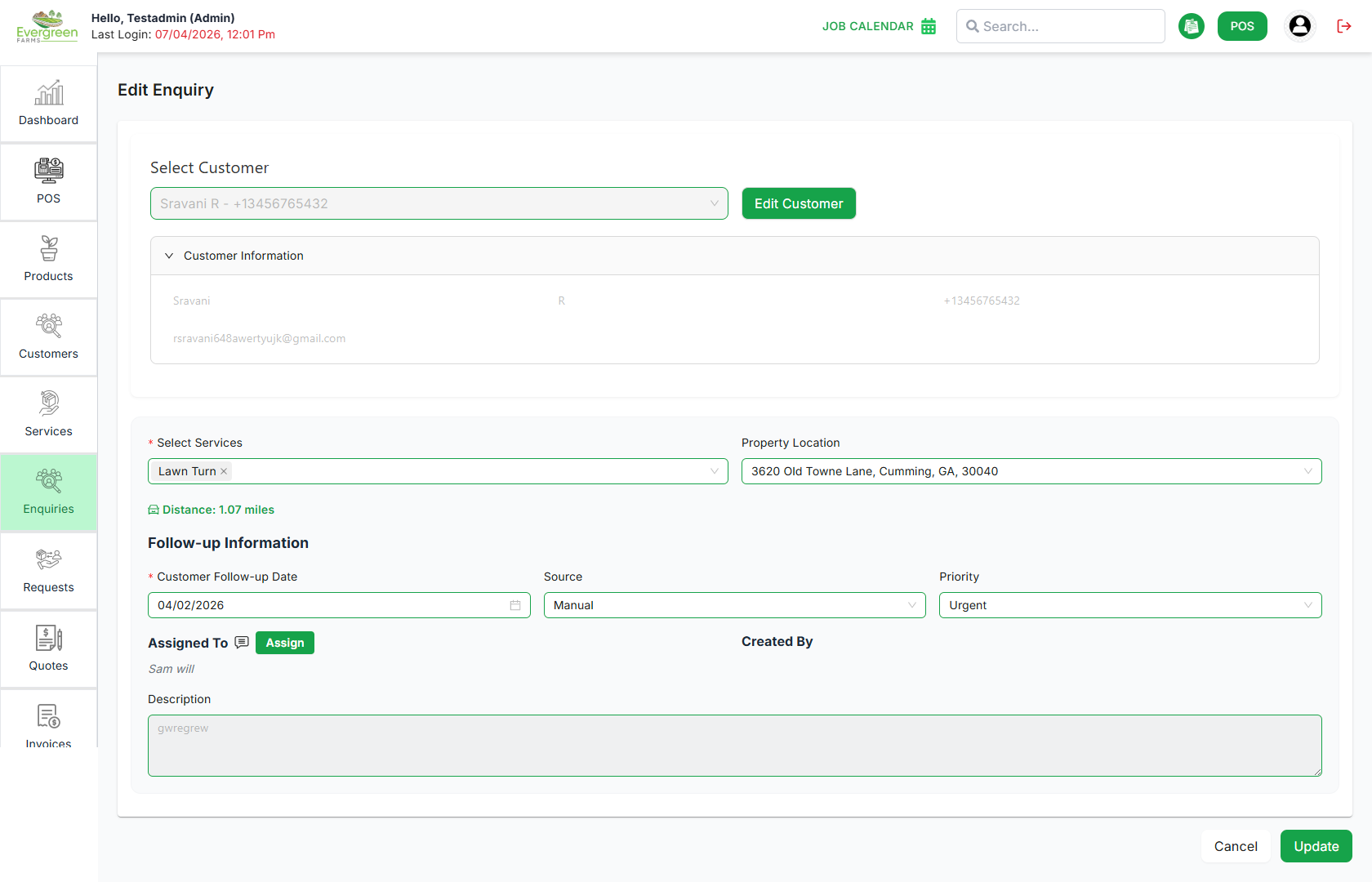
- Modify selected Services.
- Update Custom Service Name if applicable.
- Change Property Location.
- Reschedule Follow-Up Date.
- The system will validate the imported data and provide feedback on any errors or successful imports, ensuring data integrity.
- Exported CSV files will include all relevant enquiry fields such as Enquiry ID, Customer Name, Email, Phone, Status, Follow-Up Date, and Created Date for comprehensive data analysis.
- When importing, ensure the CSV file is formatted correctly with the required fields to avoid import errors and ensure successful data integration.
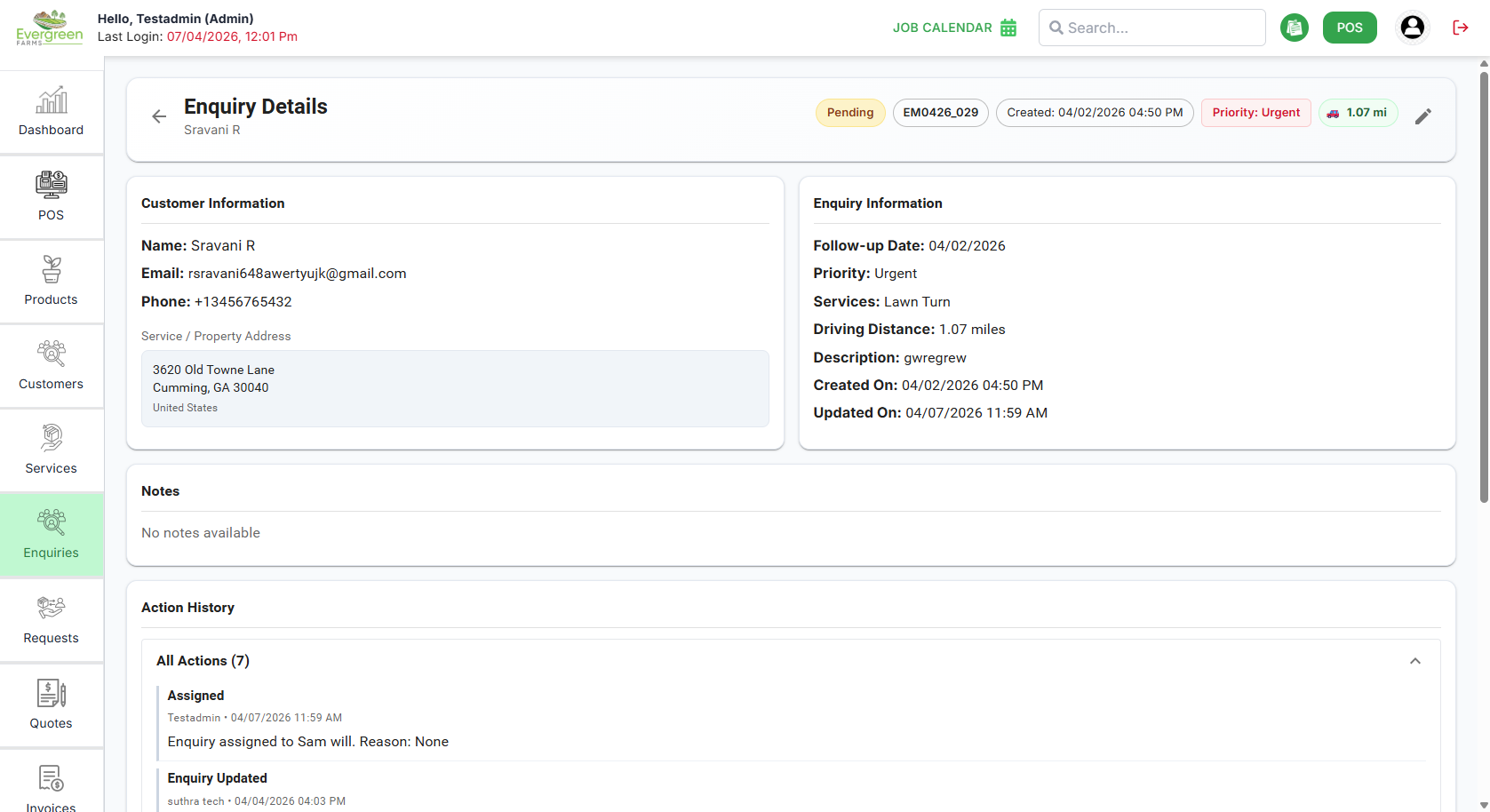
Enquiry Details
- View the Enquiry ID for reference.
- See the Customer Information including Name, Email, and Phone Number.
- see the Enquiry Information including priority, Driving Distance, Created On, Updated On, Services, Property Location, Follow-Up Date, and Description.
- Note that the Follow-Up Date is prominently displayed to ensure timely follow-up actions.
- see the Action History showing all updates and changes made to the enquiry for complete transparency and tracking.
Enquiry Status Flow
- Pending – Enquiry is newly created.
- Follow Up – Awaiting scheduled follow-up.
- Approved – Customer confirmed service.
- Cancelled – Enquiry closed without approval.
Status cards at the top provide a quick overview of enquiry distribution.
Pagination Controls
- Use Rows Per Page to adjust record count.
- Navigate using Previous and Next buttons.