Expense Management
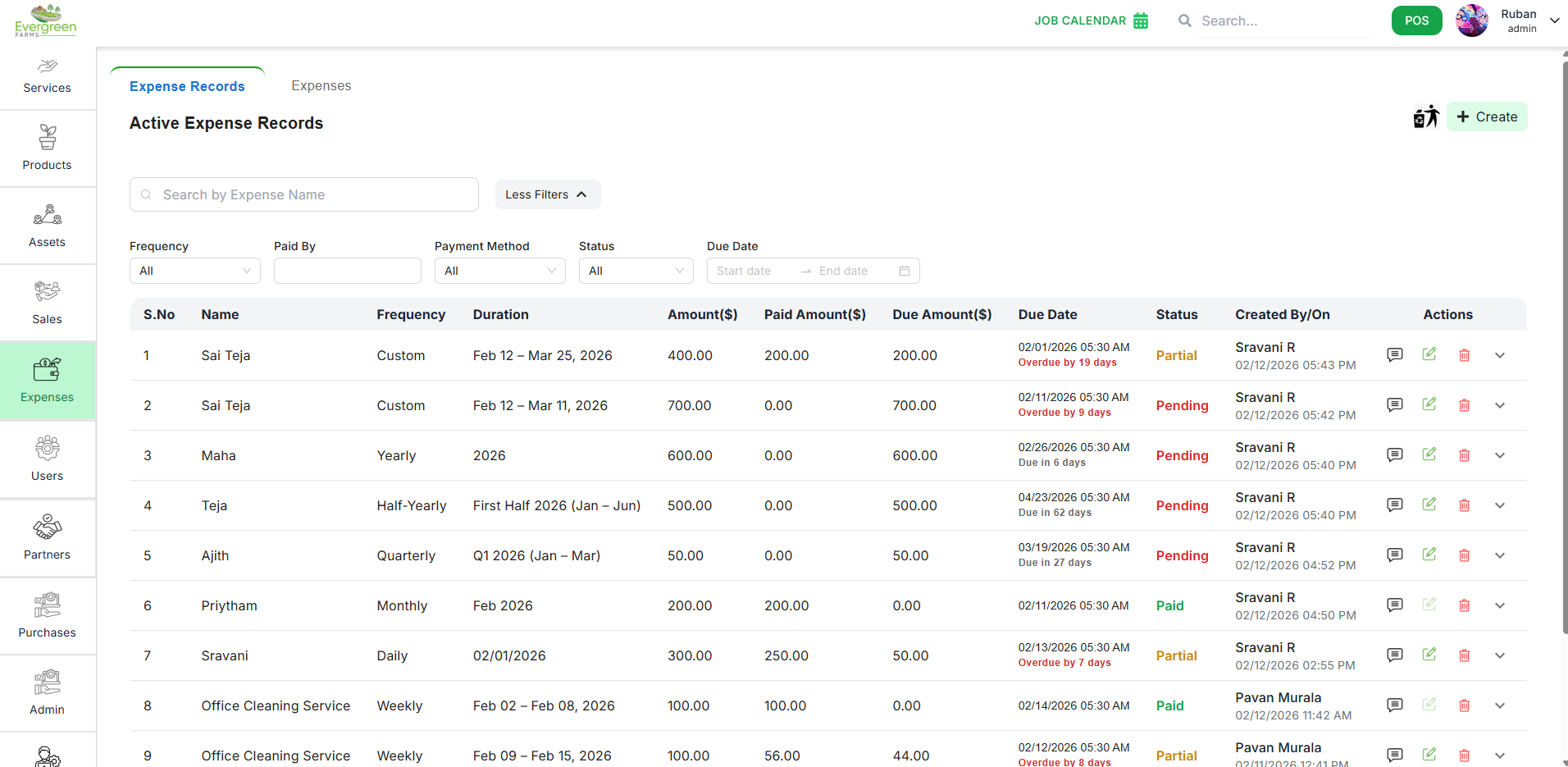
This page allows you to manage and track all expenses recorded in the system. Expenses help maintain accurate financial records by capturing payment details, responsible users, and supporting documents.
What you can do here:
- View all existing expenses along with: Total Amount, Paid Amount, Due Amount, and Status.
- Status is automatically calculated as: Pending, Partial, or Paid.
- Search for an expense using the search bar.
- Filter expenses based on date range, payment method, or status.
- Click the green “+ Create” button to add a new expense.
- View action history by hovering over the comment icon.
- Edit an existing expense using the Edit icon.
- Delete an expense using the Delete icon and provide a reason.
- Control how many records are displayed using Rows Per Page.
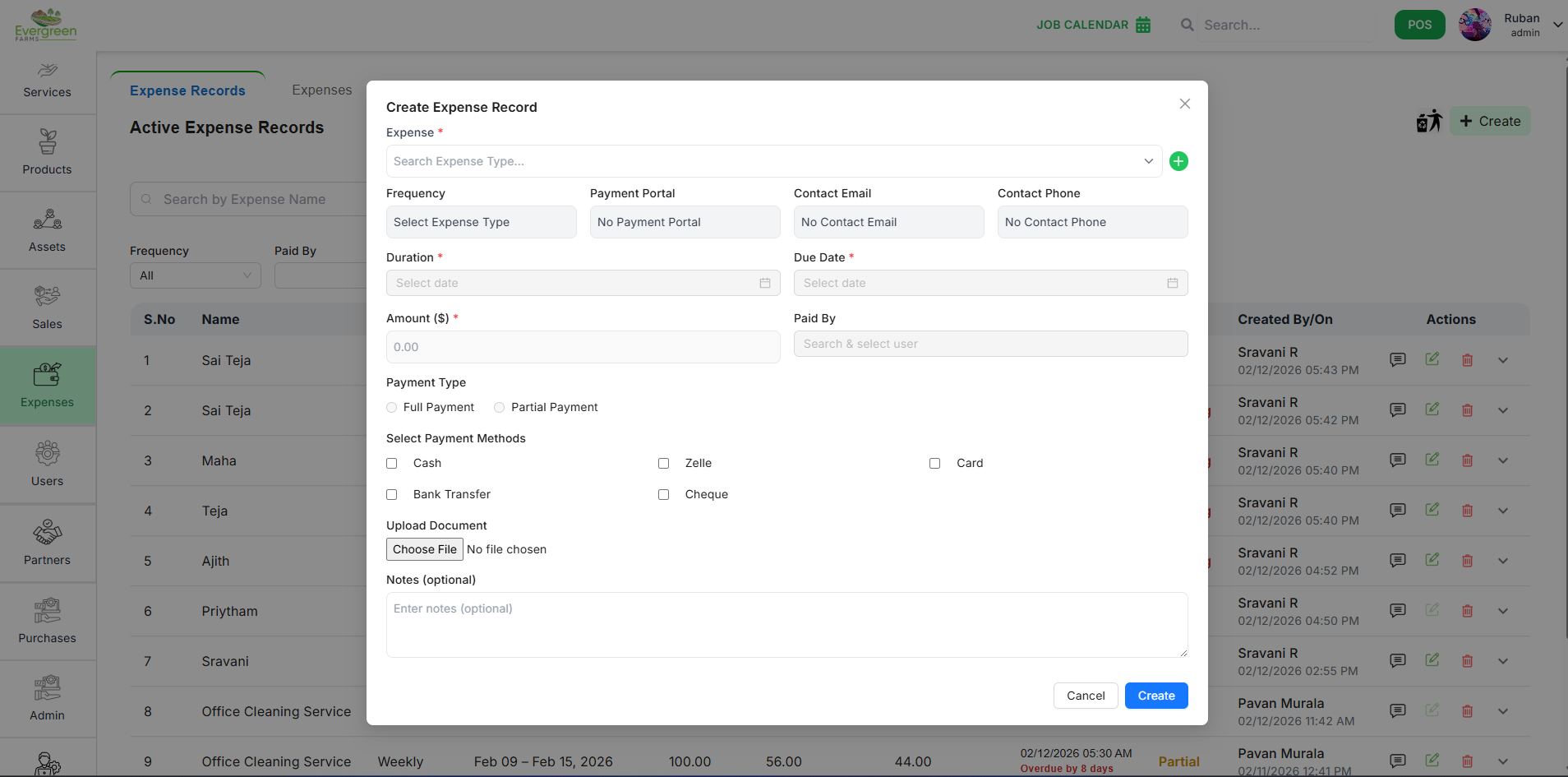
- Select an Expense Type.
- Frequency is automatically shown based on selected type.
- Choose the appropriate Period (Daily, Weekly, Bi-Weekly, Monthly, Quarterly, Half-Yearly, Yearly, or Custom).
- Enter the Total Amount.
- Select a Due Date.
-
Choose Payment Type:
- Full Payment – must match full due amount.
- Partial Payment – can split across methods.
- Select one or multiple Payment Methods (Cash, Card, Zelle, Bank Transfer, Cheque).
- If Cheque is selected, Cheque Number is required.
- Select the Paid By user.
- Upload a supporting Document (optional).
- Add optional Notes.
💡 Important:
Paid Amount and Due Amount are automatically calculated based on payments.
They are not manually entered.
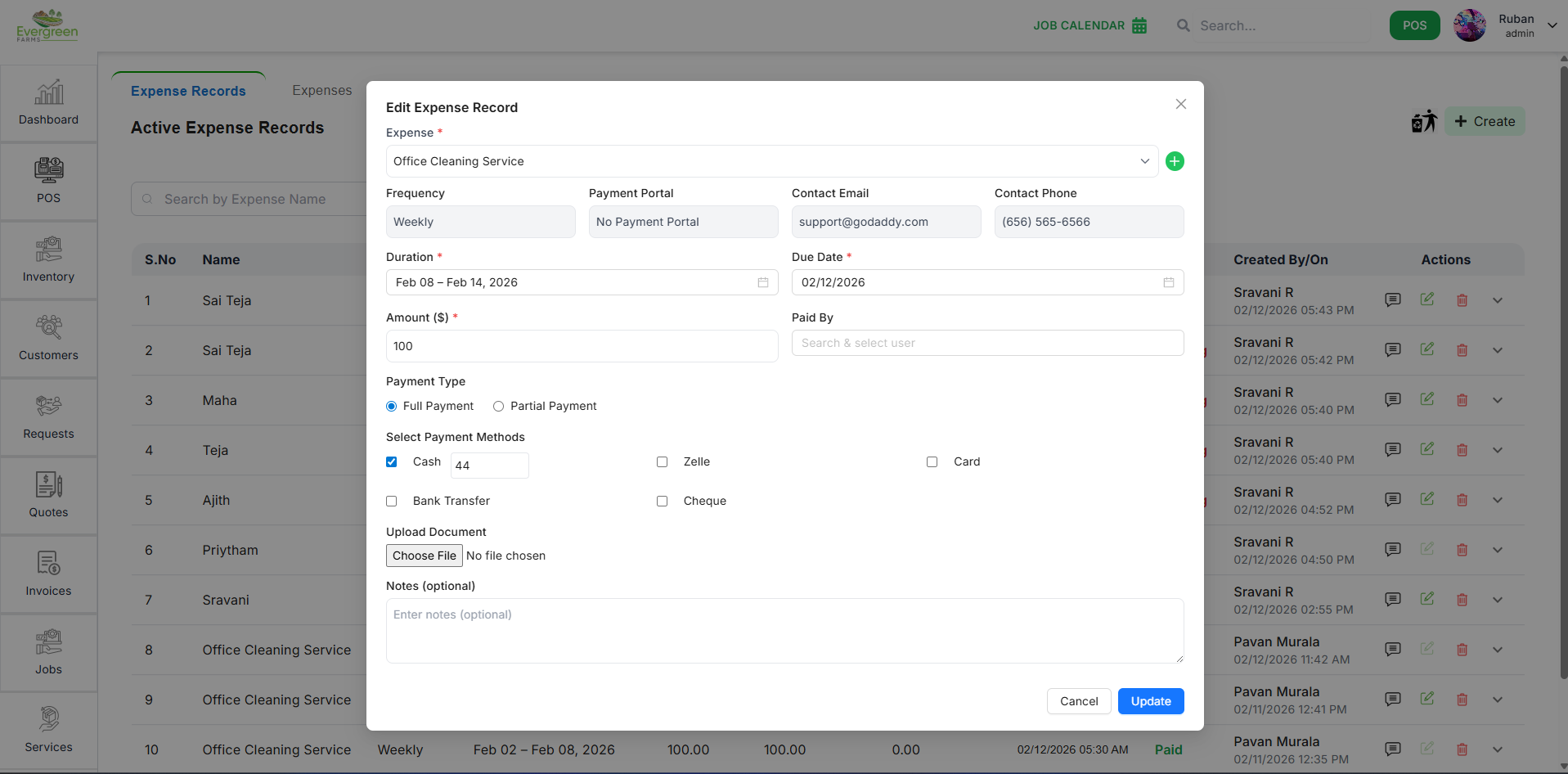
- Update the Expense Type.
- Modify the Period.
- Add additional Payments if balance remains.
- If payment already exists, Amount cannot be modified.
- Update Paid By user if needed.
- Upload or replace supporting Document.
- Update Notes.
The system automatically recalculates: Paid Amount, Due Amount, and Status after every update.
- Payments can be split across multiple methods.
- Total payment cannot exceed the remaining due amount.
- Full payment must exactly match the due amount.
-
Status automatically updates:
- No payment → Pending
- Partial payment → Partial
- Fully paid → Paid
- Tracks Create, Update, Delete, and payment actions.
- Displays User, Timestamp, and Change Details.
- Ensures complete financial traceability.
- Use Rows Per Page to adjust display count.
- Navigate using Previous and Next.
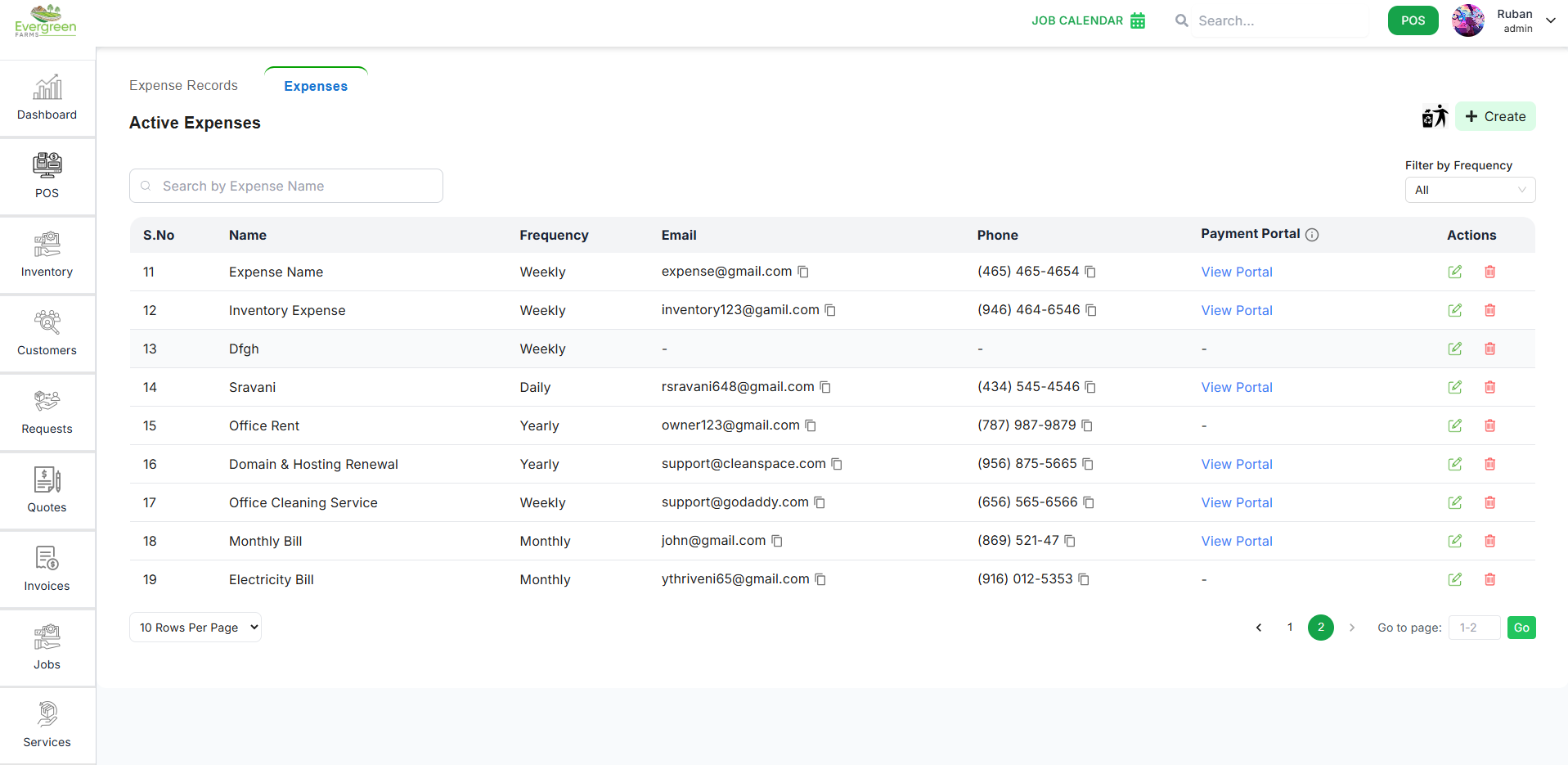
✅ What you can do here:
- View all existing Expenses along with their associated Frequency.
- Search for an expense using the Search Expense input.
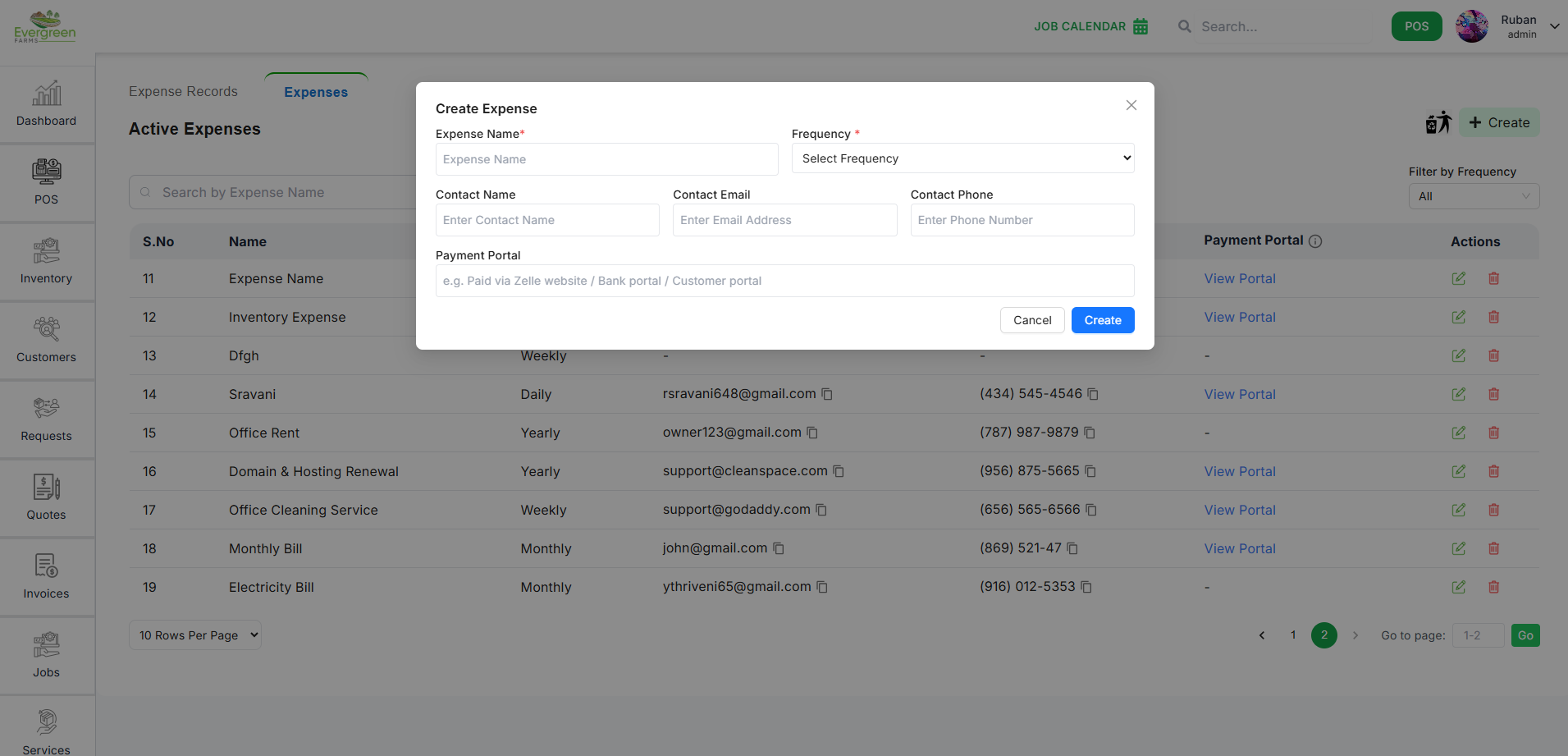
- Click the green “+ Create” button to add a new expense type.
- Edit an existing expense using the Edit icon.
- Delete an expense type using the Delete icon.
- Control how many records are displayed using Rows Per Page.
- Enter the Expense Name.
-
Select the Frequency:
- Daily
- Weekly
- Bi-Weekly
- Monthly
- Quarterly
- Half-Yearly
- Yearly
- Custom
-
Add Contact Information (Optional):
- Contact Name
- Email Address
- Phone Number
- Add Payment Portal URL (Optional).
- Click Create to save the expense type.
💡 Important:
When an Expense Type is selected while creating an expense,
its Frequency, Contact Information, and Payment Portal
are automatically displayed in the Expense form.
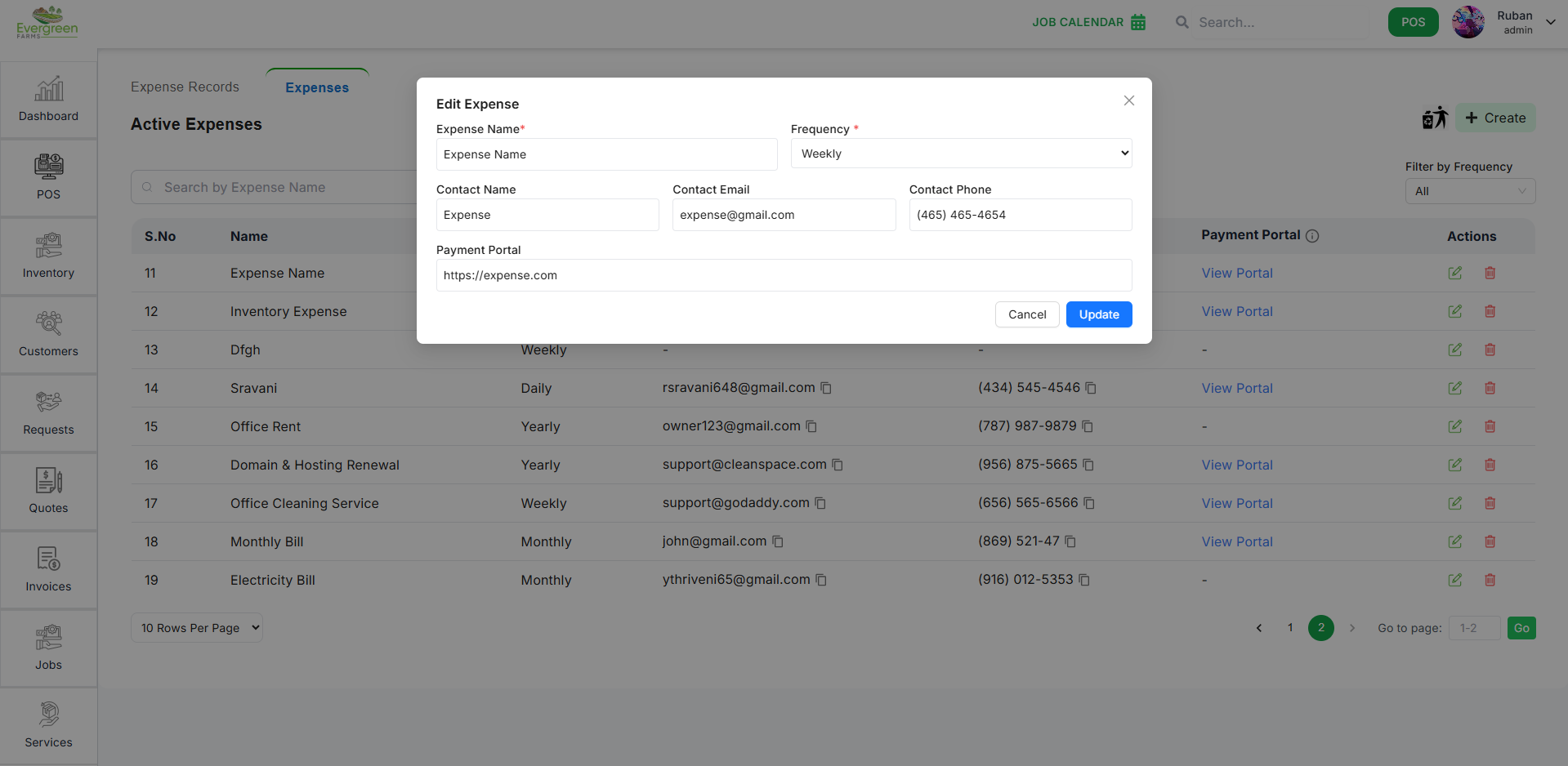
- Update the Expense Type Name.
- Modify the Frequency if required.
- Update Contact Information.
- Modify the Payment Portal URL.
- Click Update to save changes.
⚠️ Changes to Frequency will affect how the period is selected when creating new expenses of this type.
- Expense Types define how an expense behaves in the system.
- Frequency determines how the Period field works in Expense creation.
- Contact Information is displayed automatically in the Expense form.
- Payment Portal URL is shown for reference during payment entry.
- Deleting an Expense Type does not remove past expenses linked to that type.
- Use Rows Per Page to adjust how many expense types are displayed.
- Navigate using Previous and Next buttons.