Product Catalog Management
This page helps you manage product categories in your system. It is the first step in organizing all the products you offer. The flow is
Categories
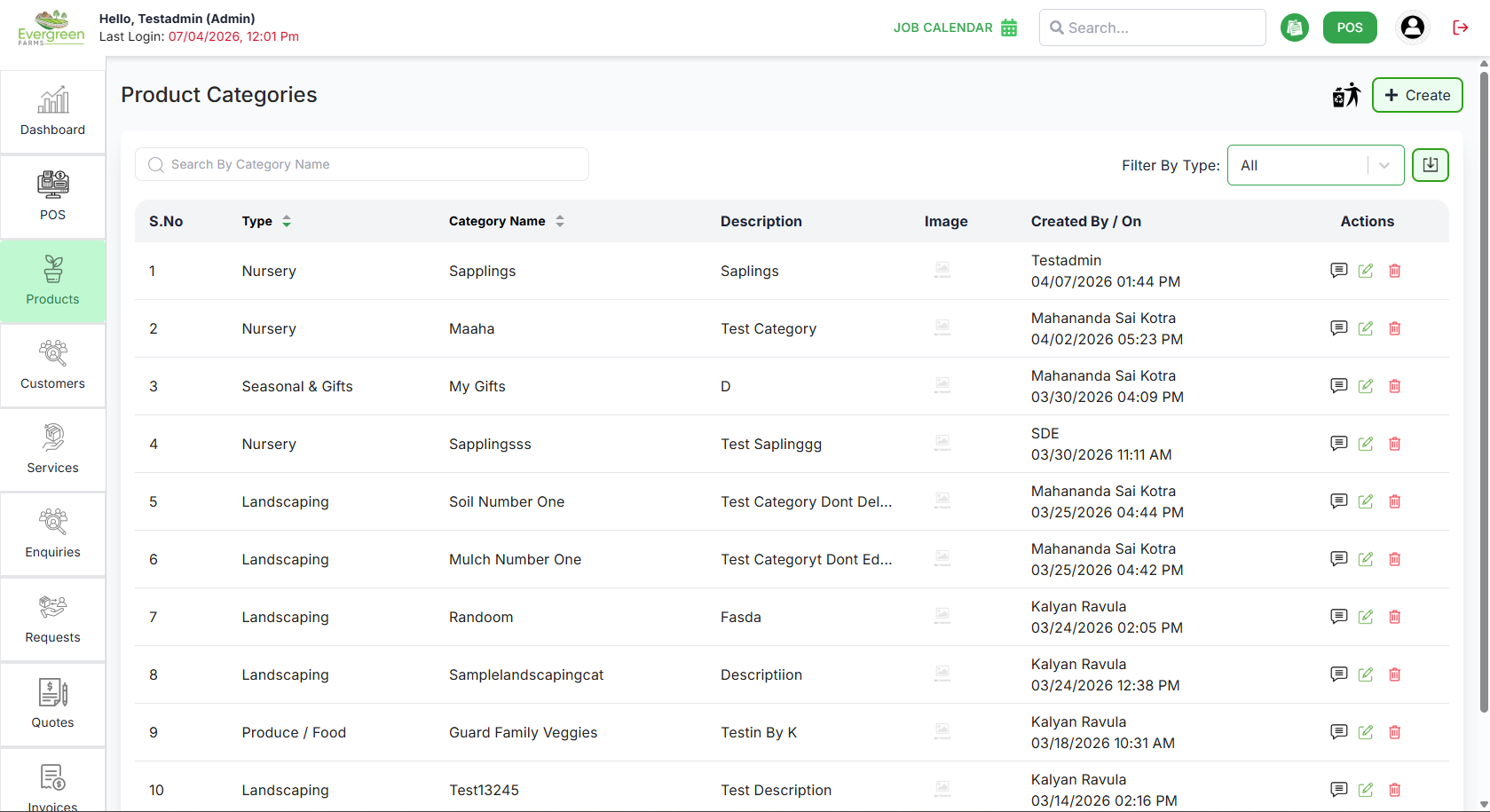
✅ What you can do here:
- View a list of all existing product categories.
- Search for a category by name using the search bar.
- Click the green “+ Create” button to add a new category.
-
Click the "
 " icon to view the categories which are deleted.
- Enter the "Category Name" into the search bar to find the required category.
-
Select a type from the "Filter By Type" dropdown to
view categories of that type. Available options include:
- Landscaping
- Nursery
- Produce / Food
- Decor
- Seasonal & Gifts
- Tools
-
The "Download" button allows you to download the
table data, including the category name and description.
You can choose to download it as a PDF or an Excel sheet. -
The
"
 " icon refers to Action History if you hover on it the
whole actions performed
" icon refers to Action History if you hover on it the
whole actions performed
on that table record is shown. -
The
"
 "
icon refers to edit the category you can Edit the
category
"
icon refers to edit the category you can Edit the
category
-
The
"
 "
icon refers to delete the category you can Delete the
category , leave a reason for deletion in comment.
"
icon refers to delete the category you can Delete the
category , leave a reason for deletion in comment.
-
You can control how many records are to bedisplayed in the table by
selecting "Rows Per Page". Use the
Previous
and Next buttons to navigate between pages.
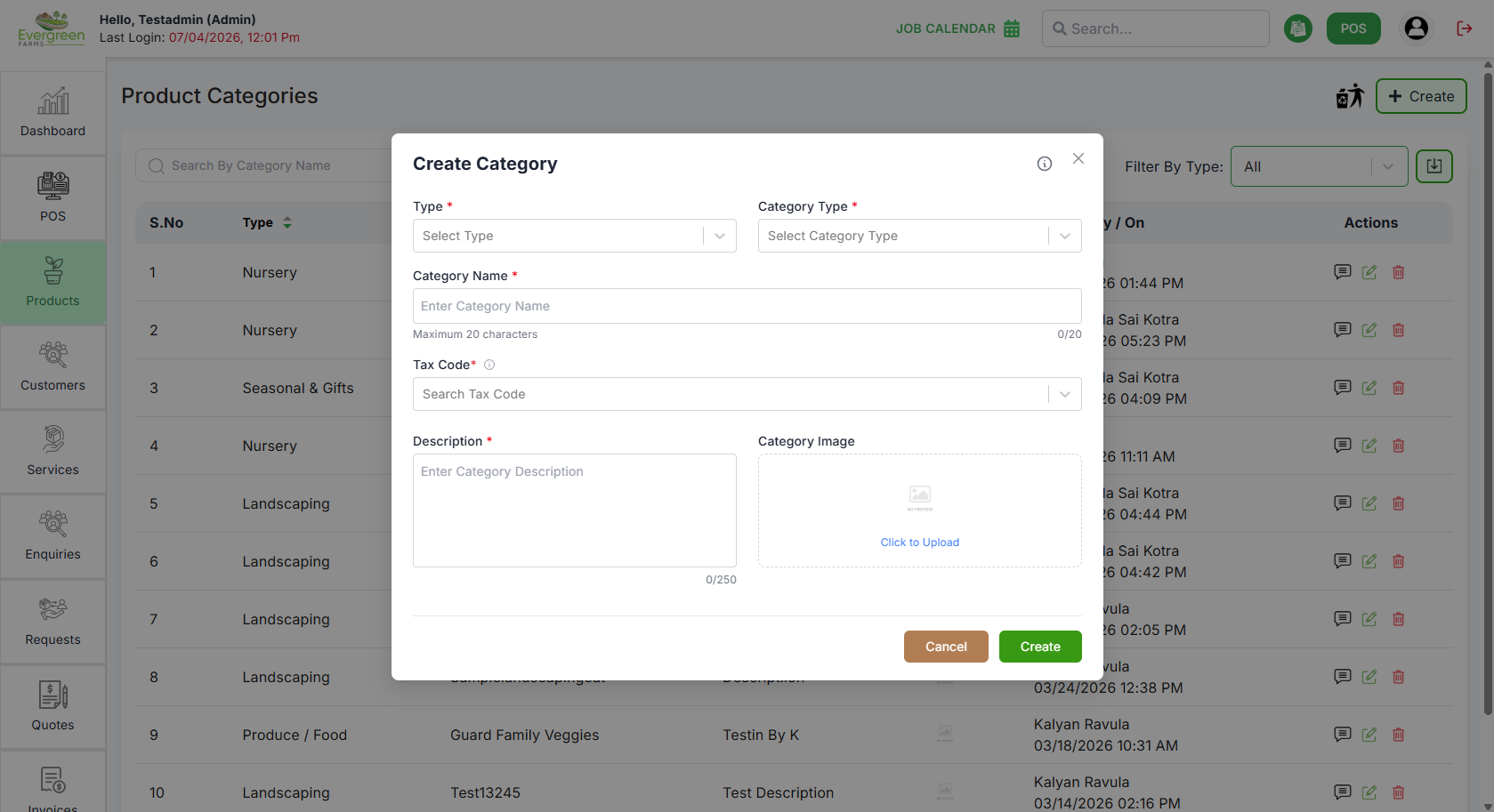
Create Category
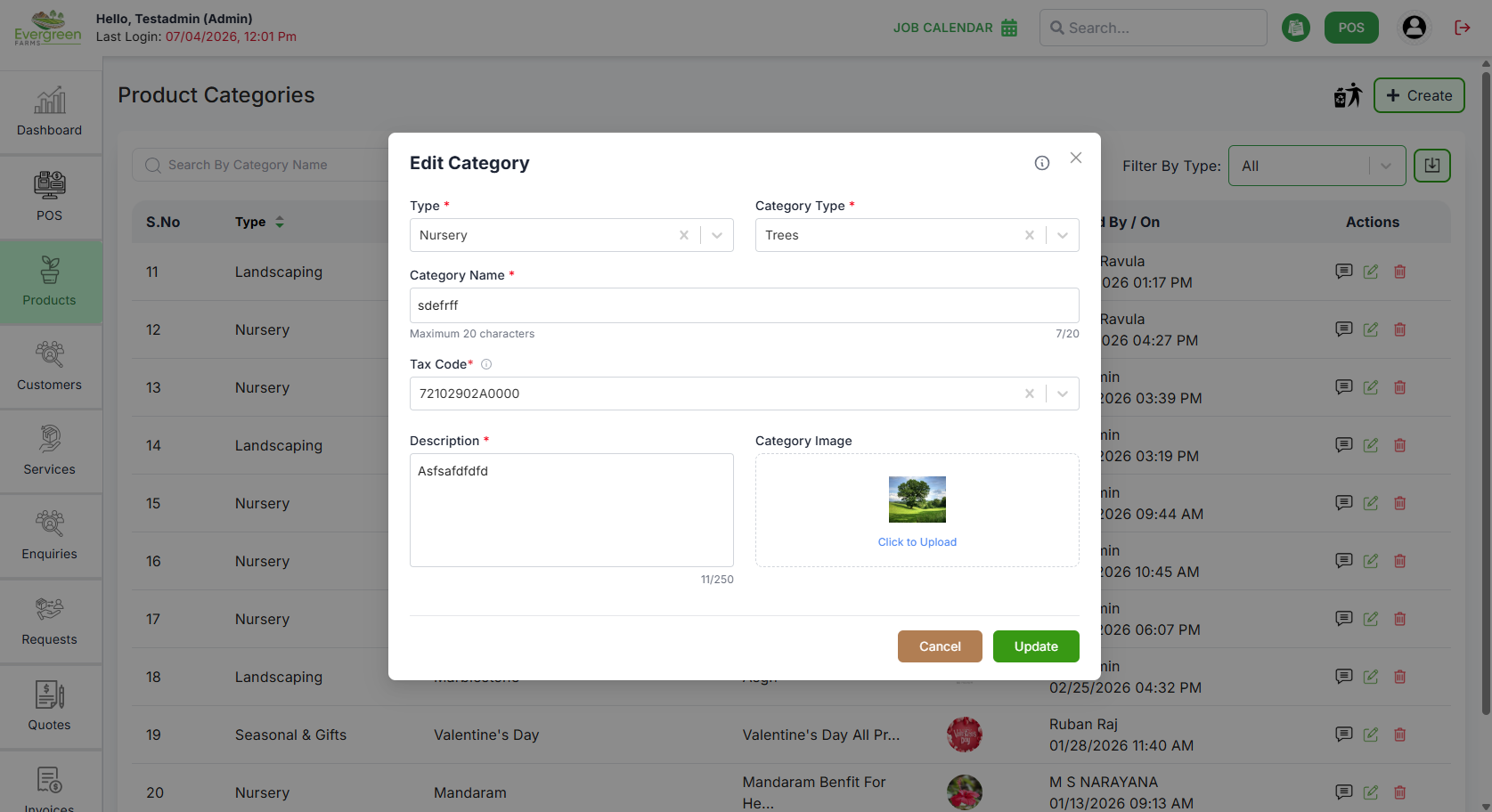
Edit Category
- Re-enter the type of the Product.
- Re-enter the Category type.
- Re-enter the Category Name.
- Re-add the Description only 250 characters
- Upload or re-upload the Category Image.
Deleted Categories
-
Click the
icon to view categories that have been deleted.
- Here, you can see the reason and deletion date of each deleted category.
- To restore a deleted product category, click on the "♻️" icon.

Pagination Controls
Navigate through partner records efficiently:
- Use the rows per page dropdown (▼) to select display density
- Default shows 10 rows per page (e.g., 5, 10, 15, 20)
- Use pagination controls when you have more vendors than fit on one page (e.g., Prev, Next)

Sub Categories
✅ What you can do here:
- View all existing subcategories along with their parent categories.
- Search for a subcategory by name using the search bar.
- Click the green “+ Create” button to add a new subcategory.
-
The
"" icon refers to Action History if you hover on it the
whole actions performed on that table record is shown.
-
The
""
icon refers to edit the category you can Edit the
category
-
The
""
icon refers to delete the category you can Delete the
category , leave a reason for deletion in comment.
-
You can control how many records are to bedisplayed in the table by
selecting "Rows Per Page". Use the
Previous
and Next buttons to navigate between pages.
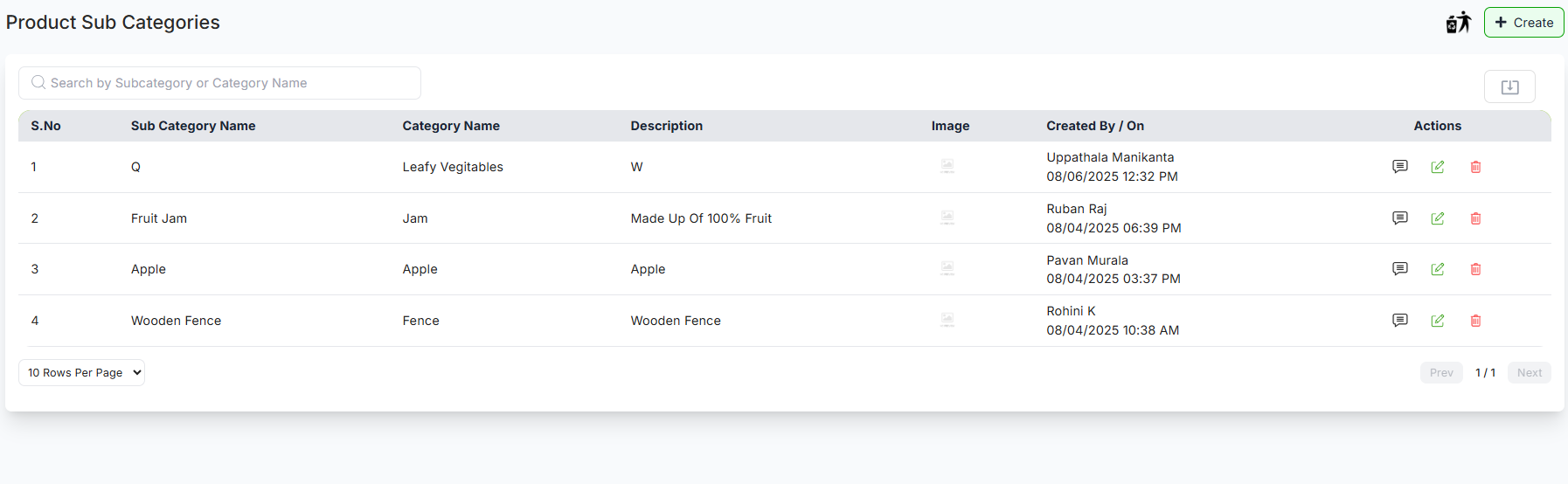
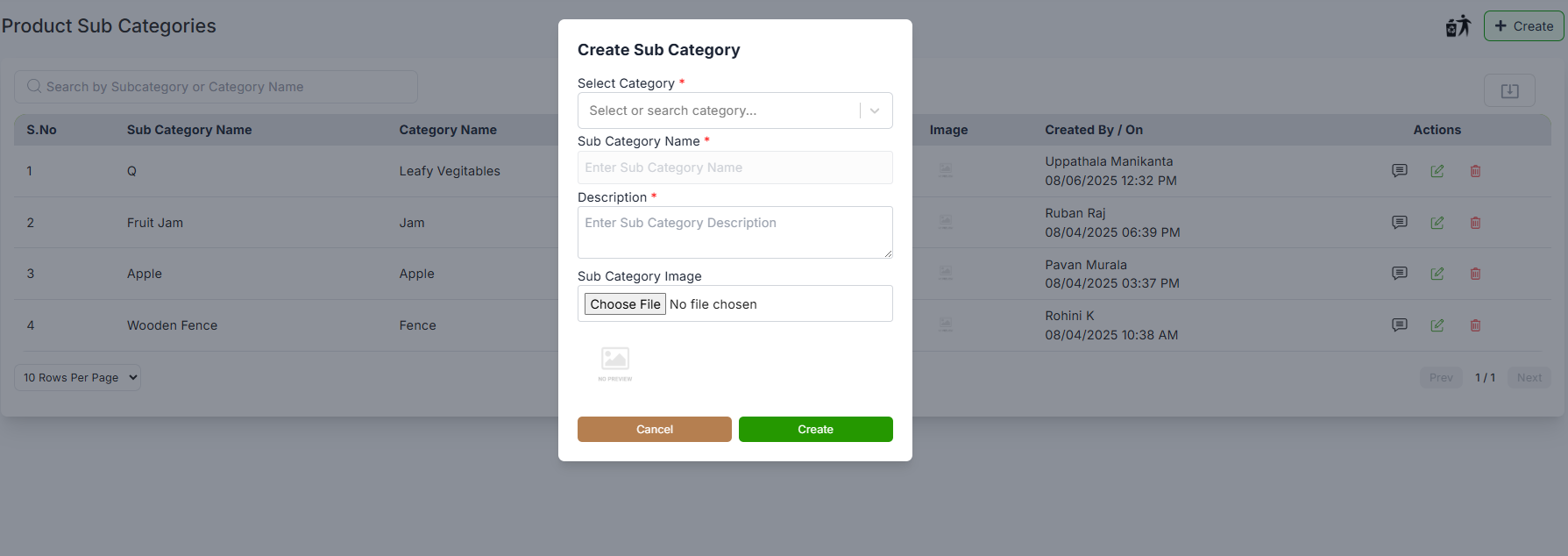
Create Subcategory
- Select the Parent Category from the dropdown menu.
- Enter the Subcategory Name.
- type as "The Description should be entered" Description only 250 characters.
- Upload a representative Image.
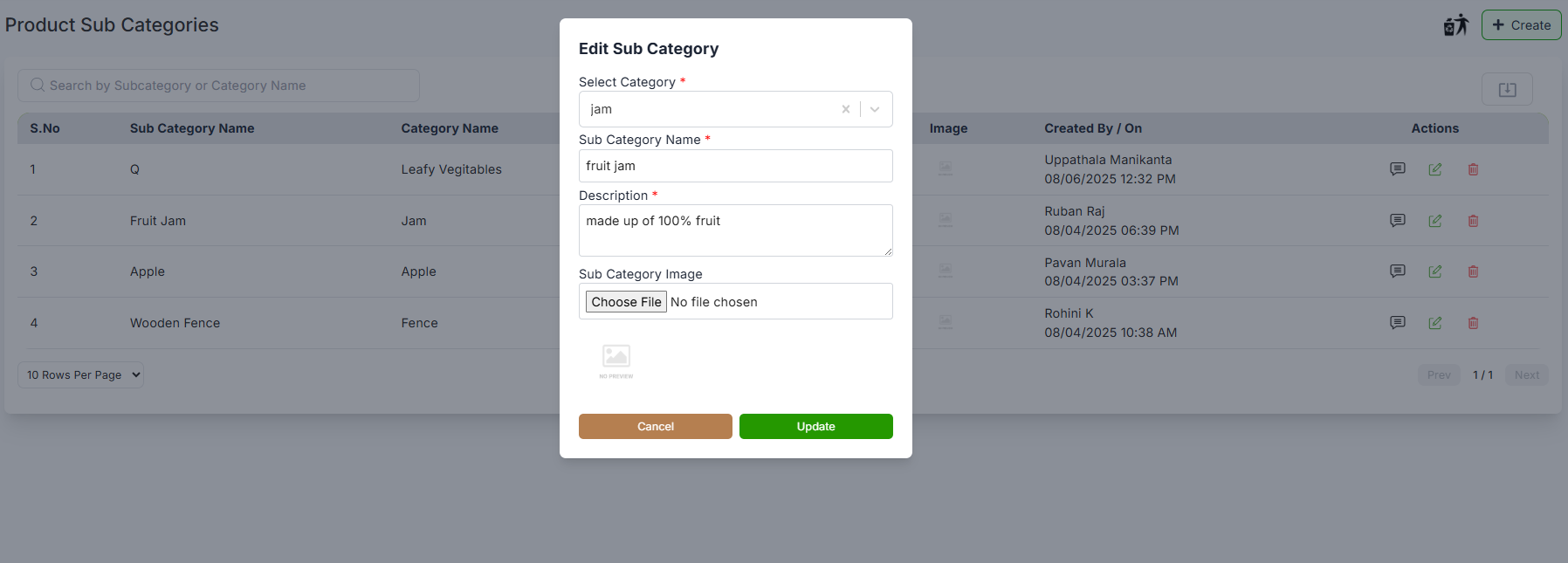
Edit Subcategory
- Re-select the Parent Category from the dropdown menu. Re-select the Parent Category from the dropdown menu.
- Re-enter the Subcategory Name.
- Modify the Description only 250 characters
- Re-upload or upload representative Image.
Deleted Sub Categories
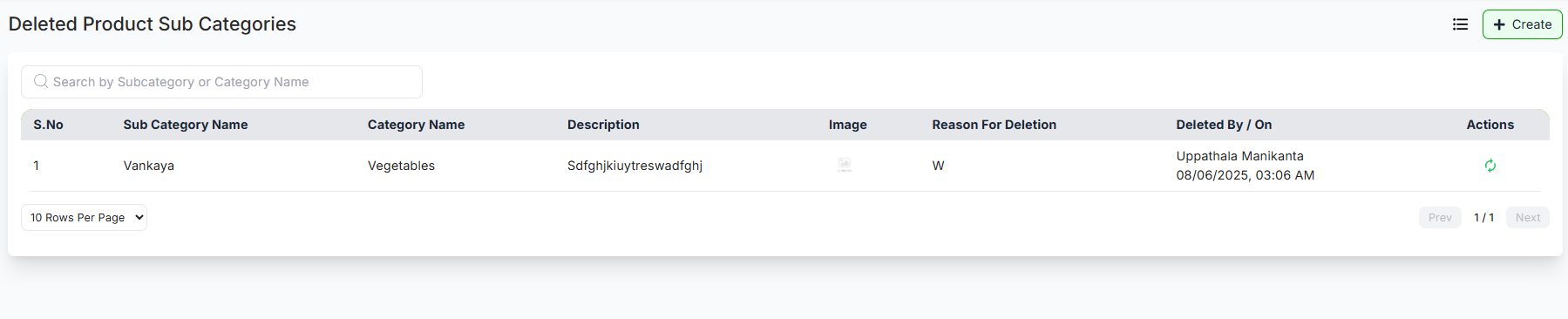
Deleted Sub Categories
-
Click the
icon to view categories that have been deleted.
- Here, you can see the reason and deletion date of each deleted sub category.
- To restore a deleted sub category, click on the "♻️" icon.
-
Click the
icon to view categories that have been deleted.
- Here, you can see the reason and deletion date of each deleted sub category.
- To restore a deleted sub category, click on the "♻️" icon.
Products
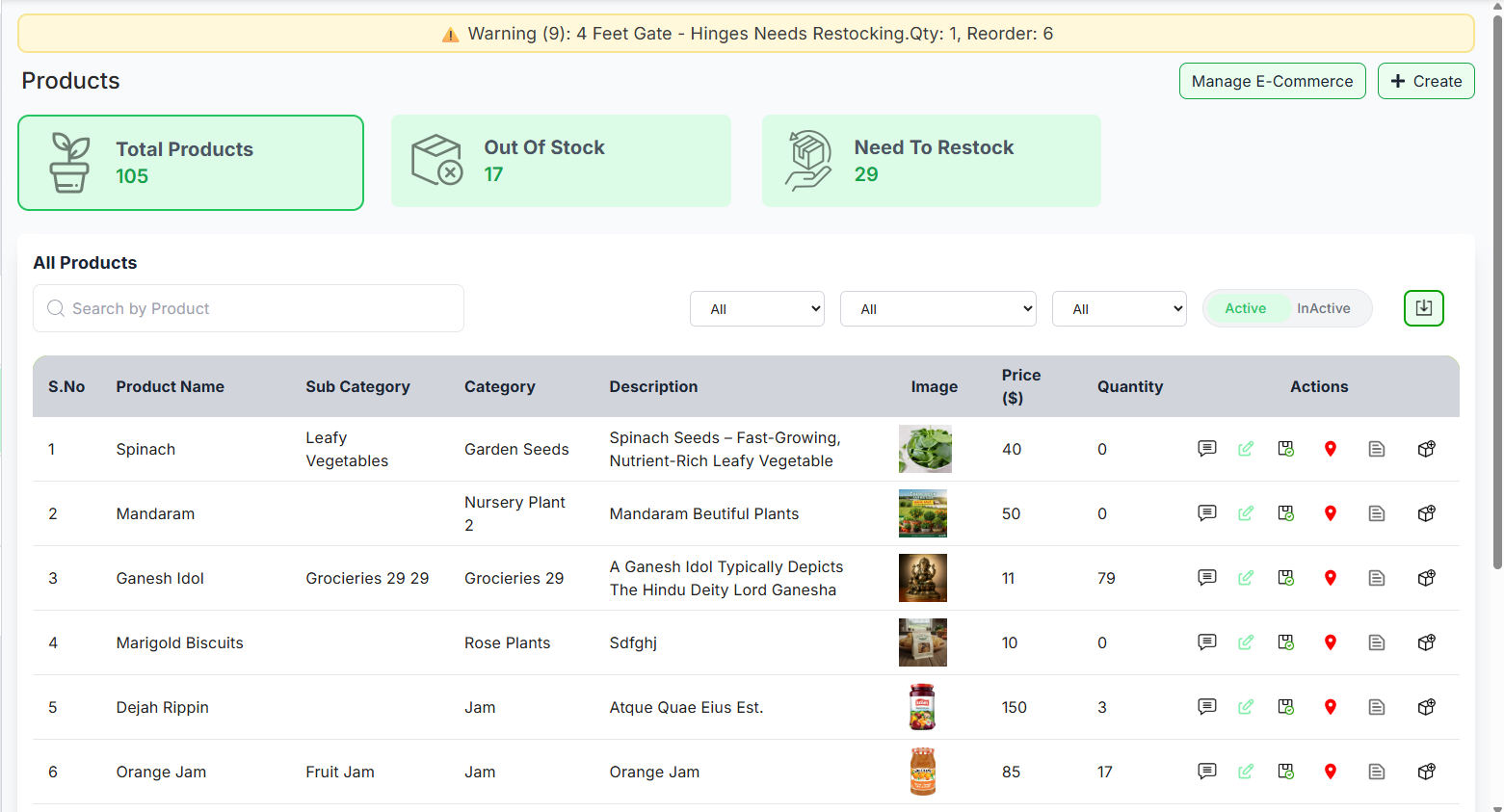
✅ What you can do here:
- View all existing products along with their categories, subcategories, prices, and quantities.
- Search for a product by name using the search bar.
- Filter products by status (Active/Inactive) using the toggle.
- Click the green “+ Create” button to add a new product.
- Edit any product using the action icons in the table.
- You can change the status of the product by clicking on the button beside edit to active or inactive Edit any product using the action icons in the table.
- You can change the status of the product by clicking on the button beside edit to active or inactive
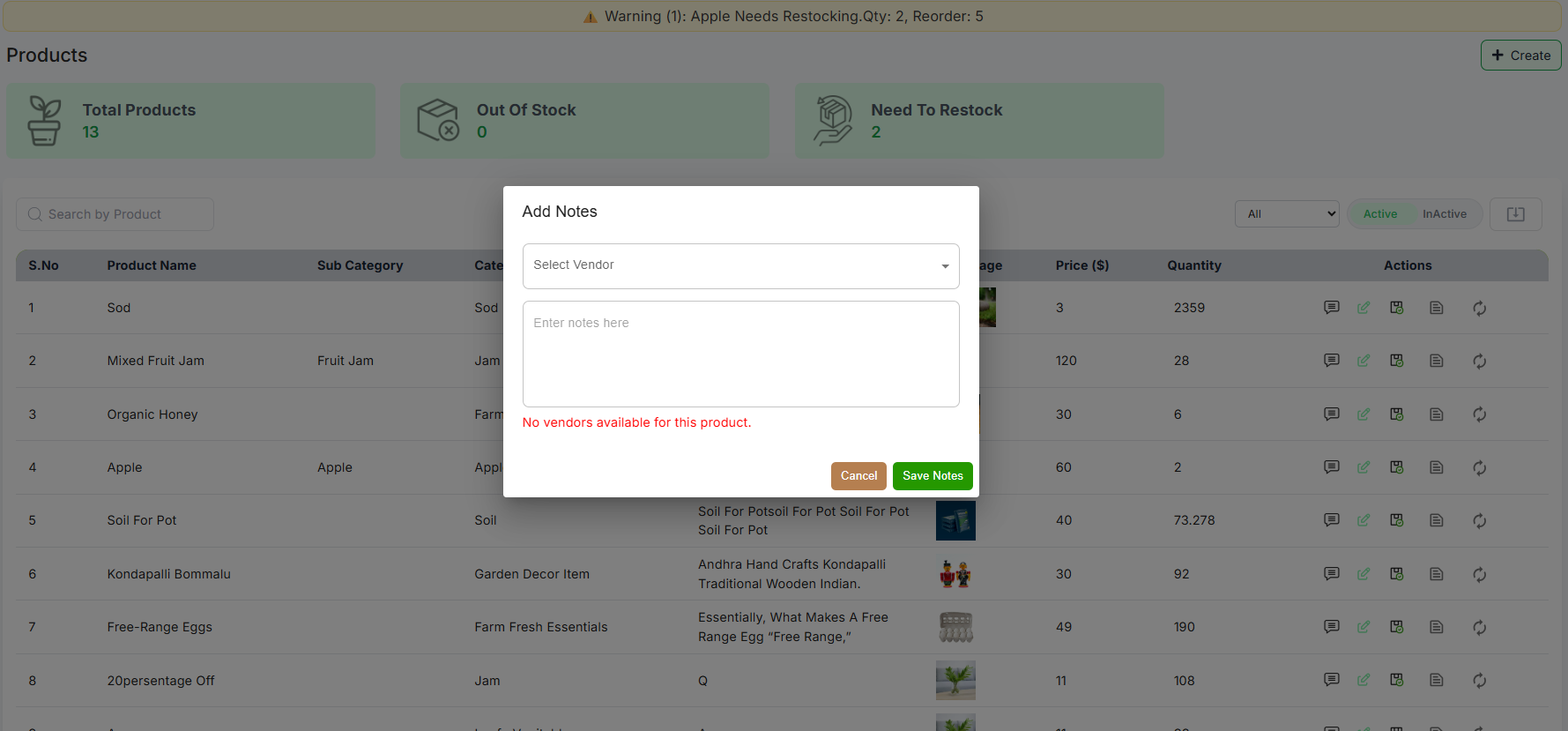
- You can add notes By clicking notes button
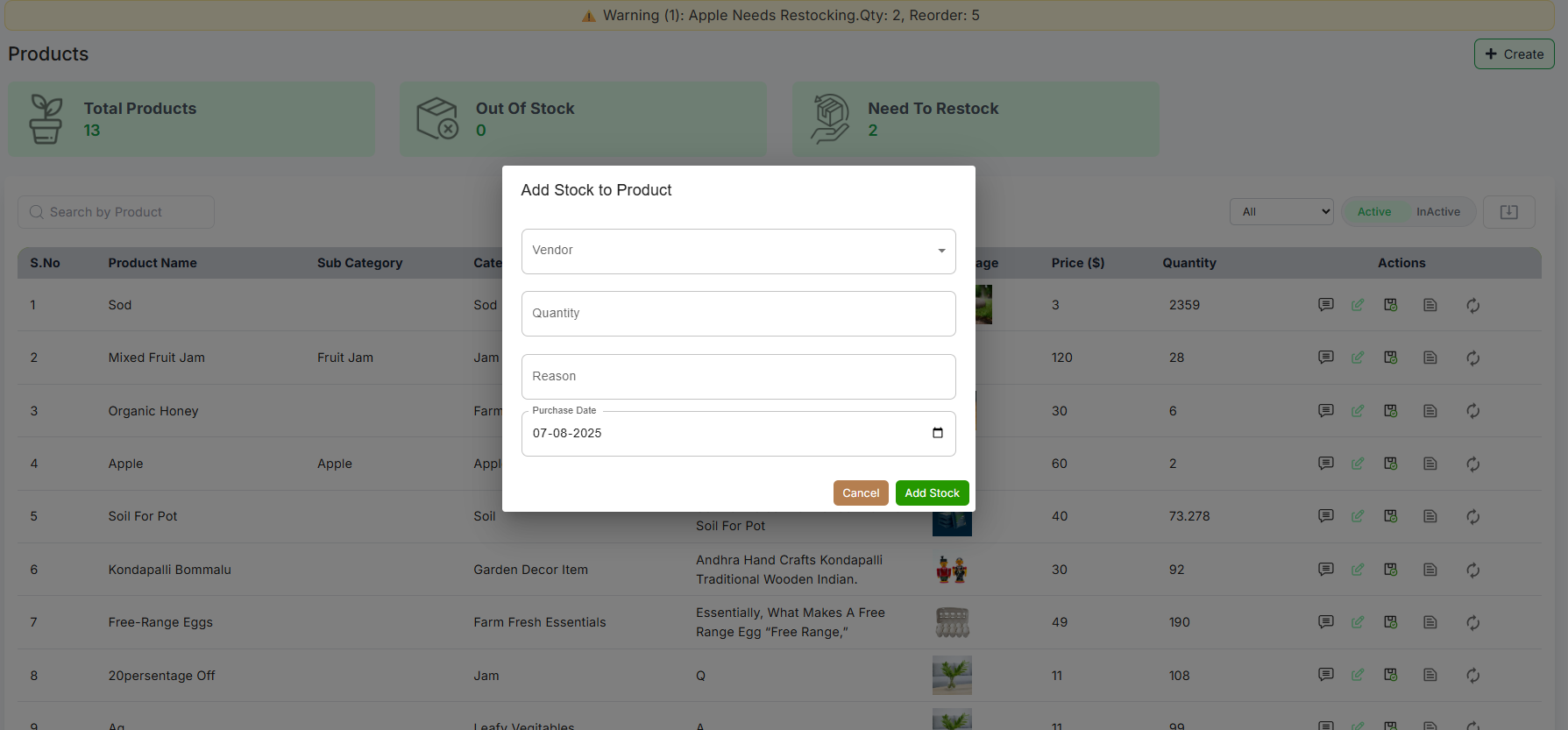
- You can add the stock to the product by clicking the last button in actions
- You can check the active and inactive products by clicking on active and inactive tab
- You can add the stock to the product by clicking the last button in actions
- You can check the active and inactive products by clicking on active and inactive tab
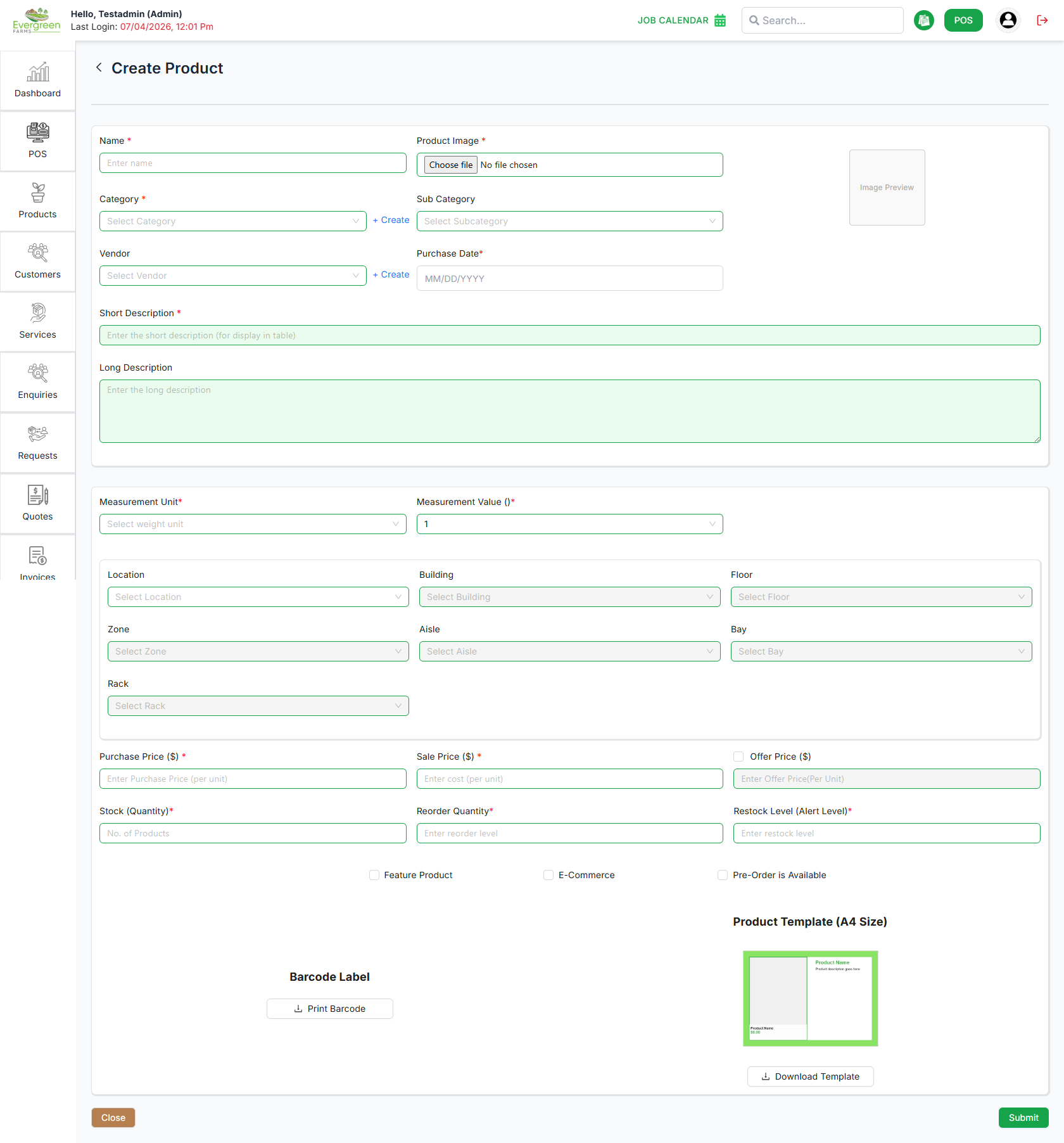
Create Product
- Enter the Product Name.
- Upload a Product Image.
- Select the Category and Sub Category from the dropdown menus.
- Select a Vendor or create a new one.
- Add a Short Description and Long Description.
- Enter the Price, Offer Price, and Purchase Price.
- Specify the Quantity, Reorder Quantity, and Restock Level.
- Optionally check Pre-order Available.
Edit Product
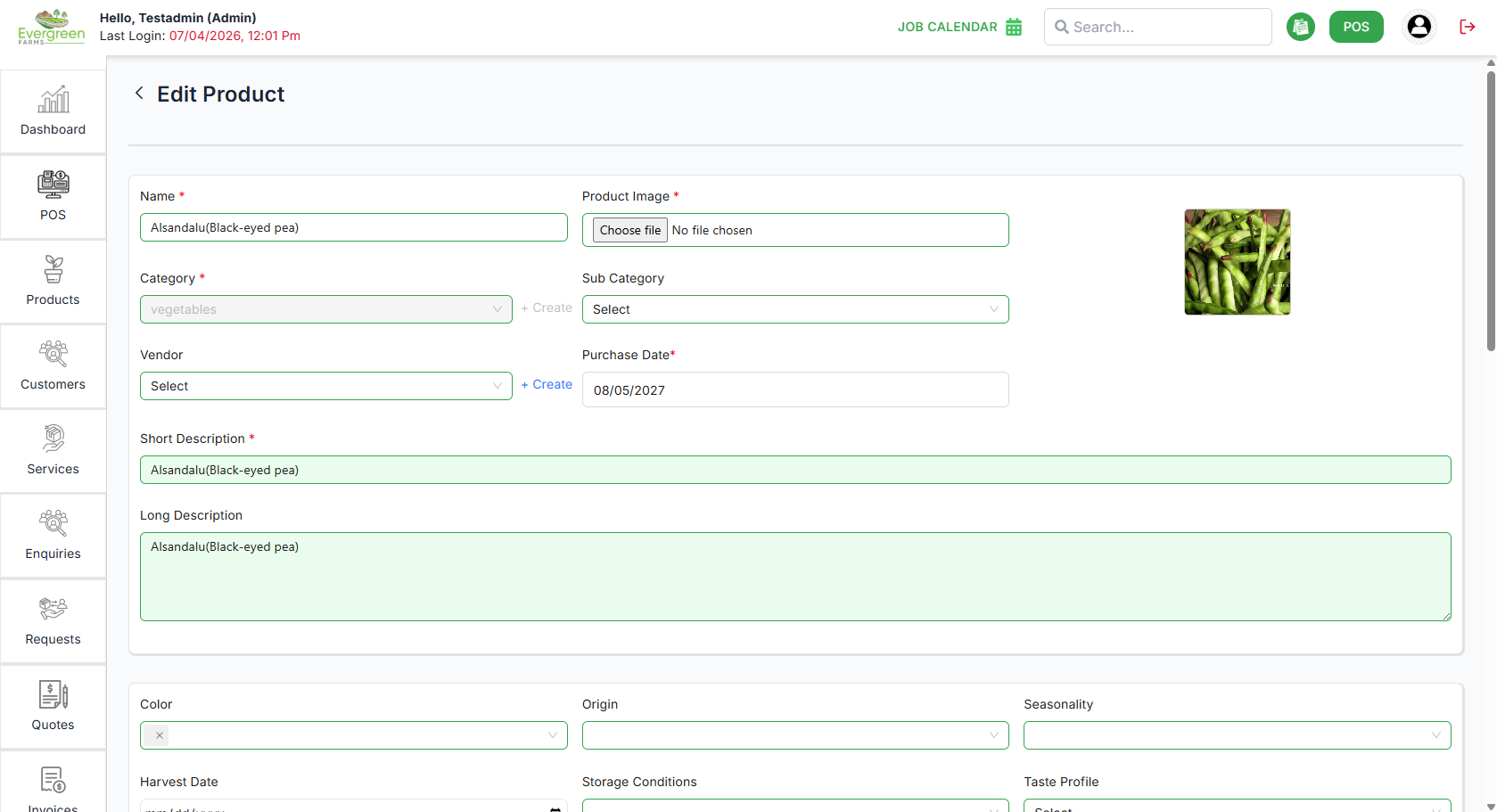
- Re-enter the Product Name.
- Re-upload or upload a new Product Image.
- Re-select the Category and Sub Category from the dropdown menus.
- Select a different Vendor if needed.
- Update the Short Description and Long Description.
- Modify the Price, Offer Price, and Purchase Price.
- Adjust the Quantity, Reorder Quantity, and Restock Level.
- Toggle the Pre-order Available option if needed.
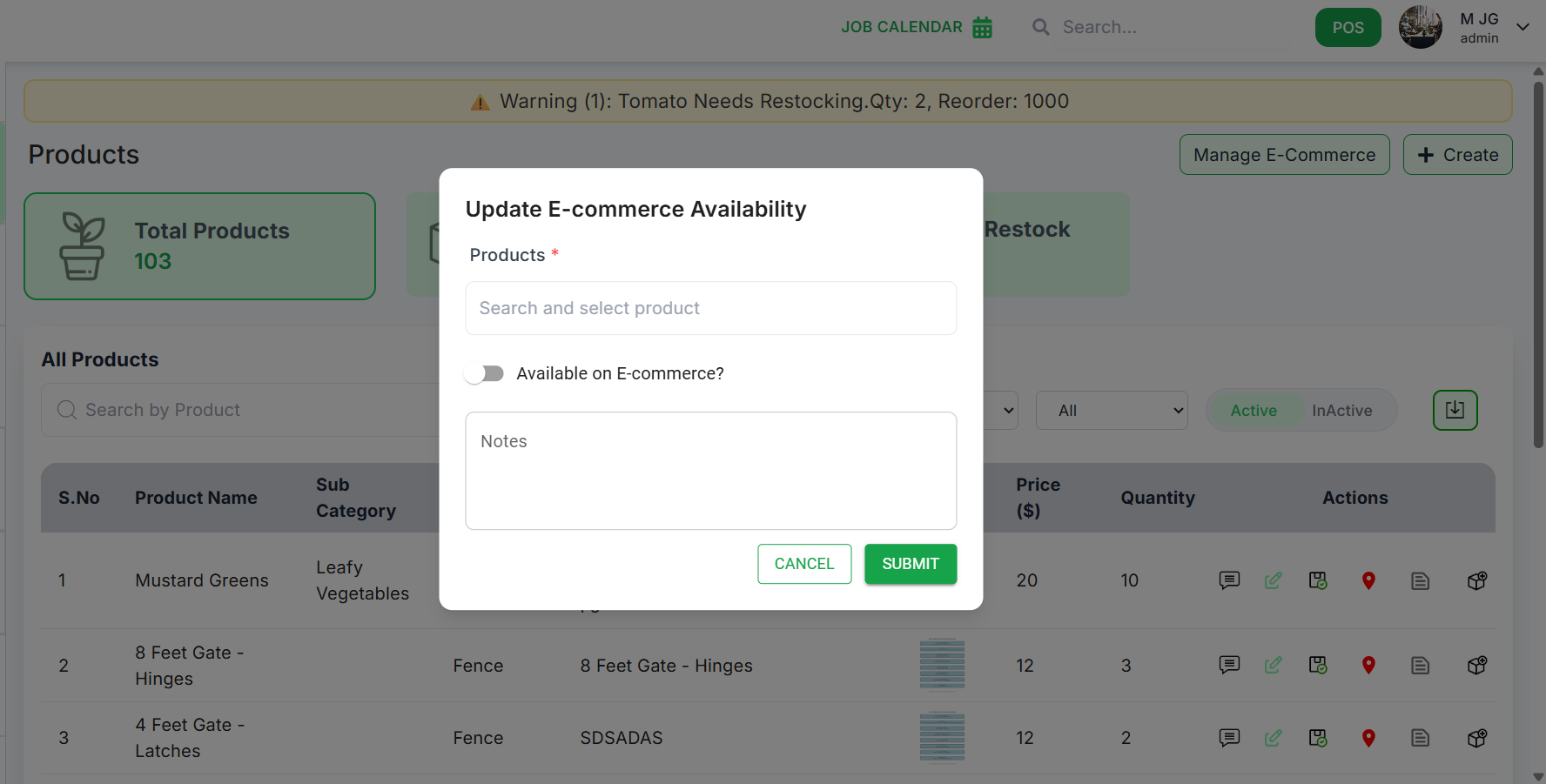
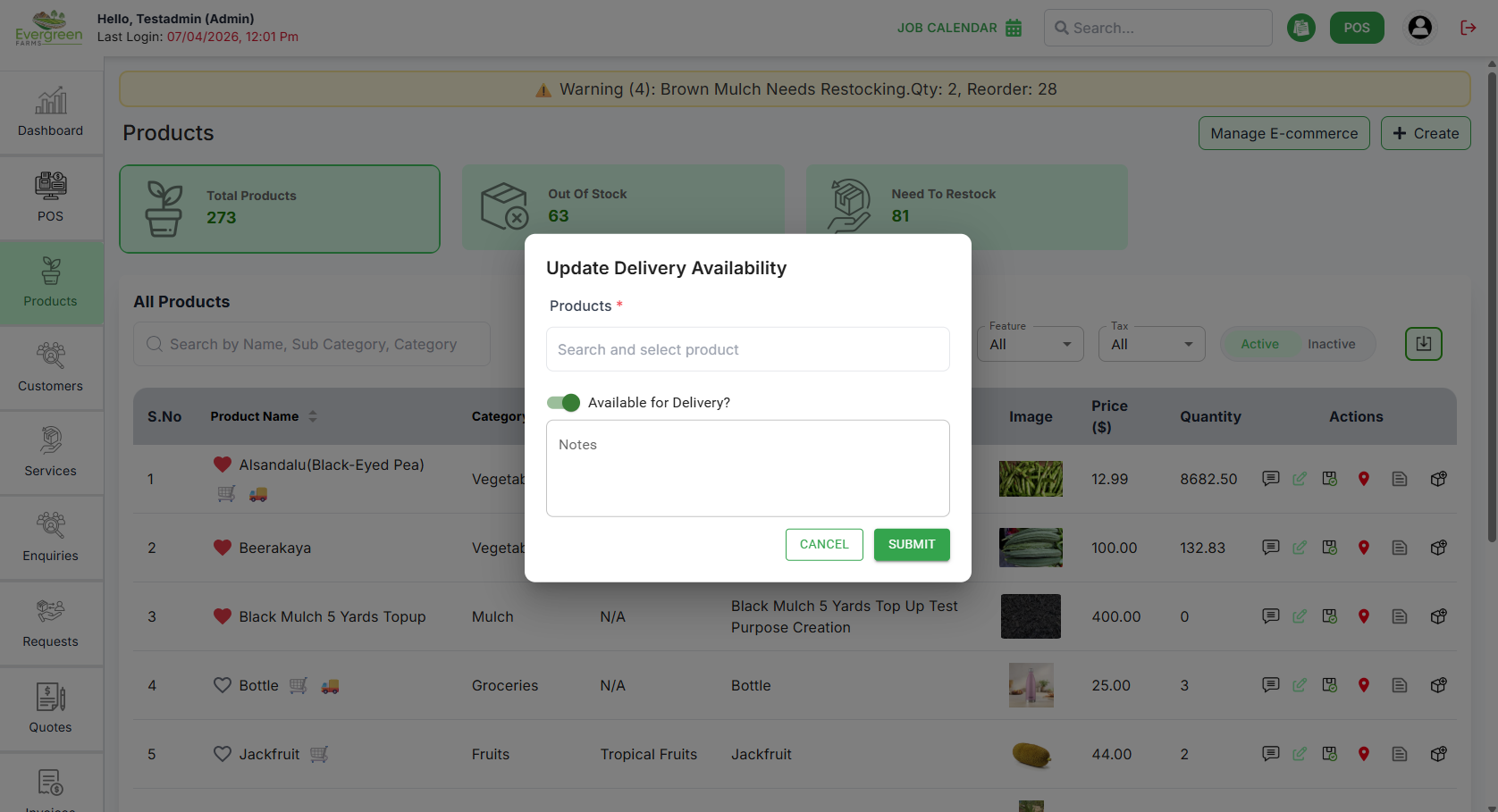
Product-E-commerce
- Search or select the Product name .
- Make to Enable or Disable Available on E-commerce?.
- Write down the note for Available on E-commerce?
- Make r Enable or Disable Available on Delivery?.
- Write down the note for Available on Delivery?
- and Submit
Product Status Update
- Search or select the Product name .
- Select the Status you want to update.
- Write down the note for Status Update
- and Submit
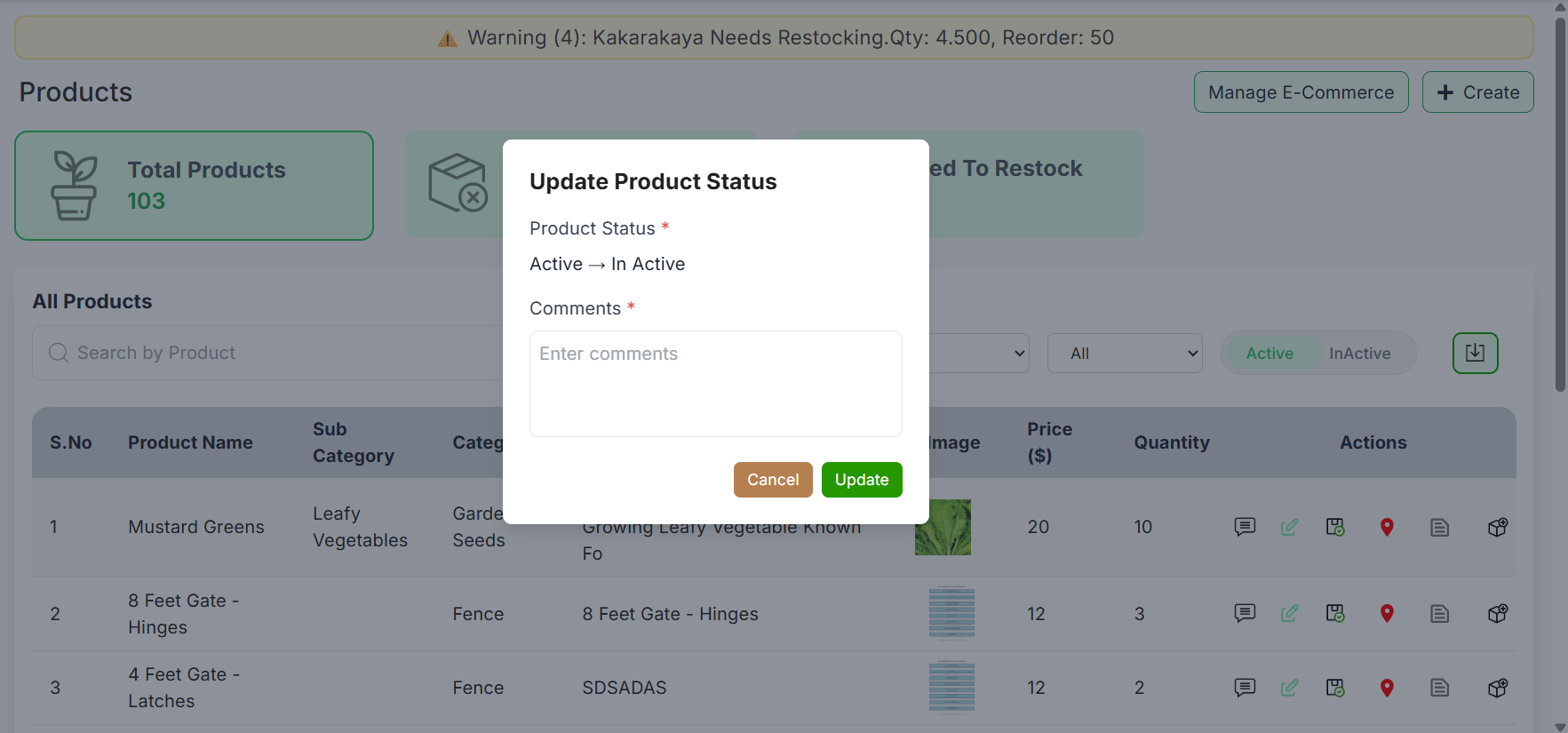
Active Products and Inactive Products
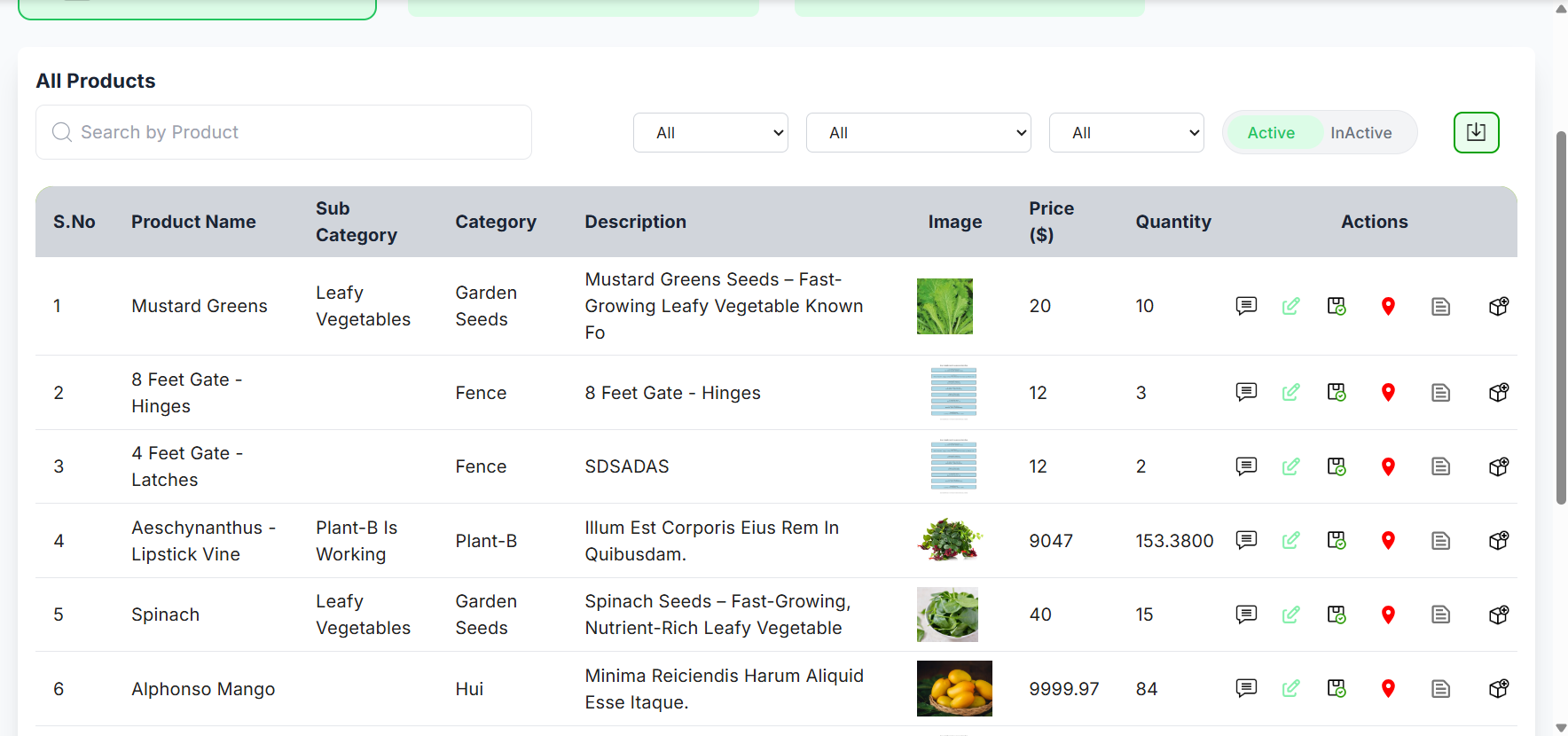
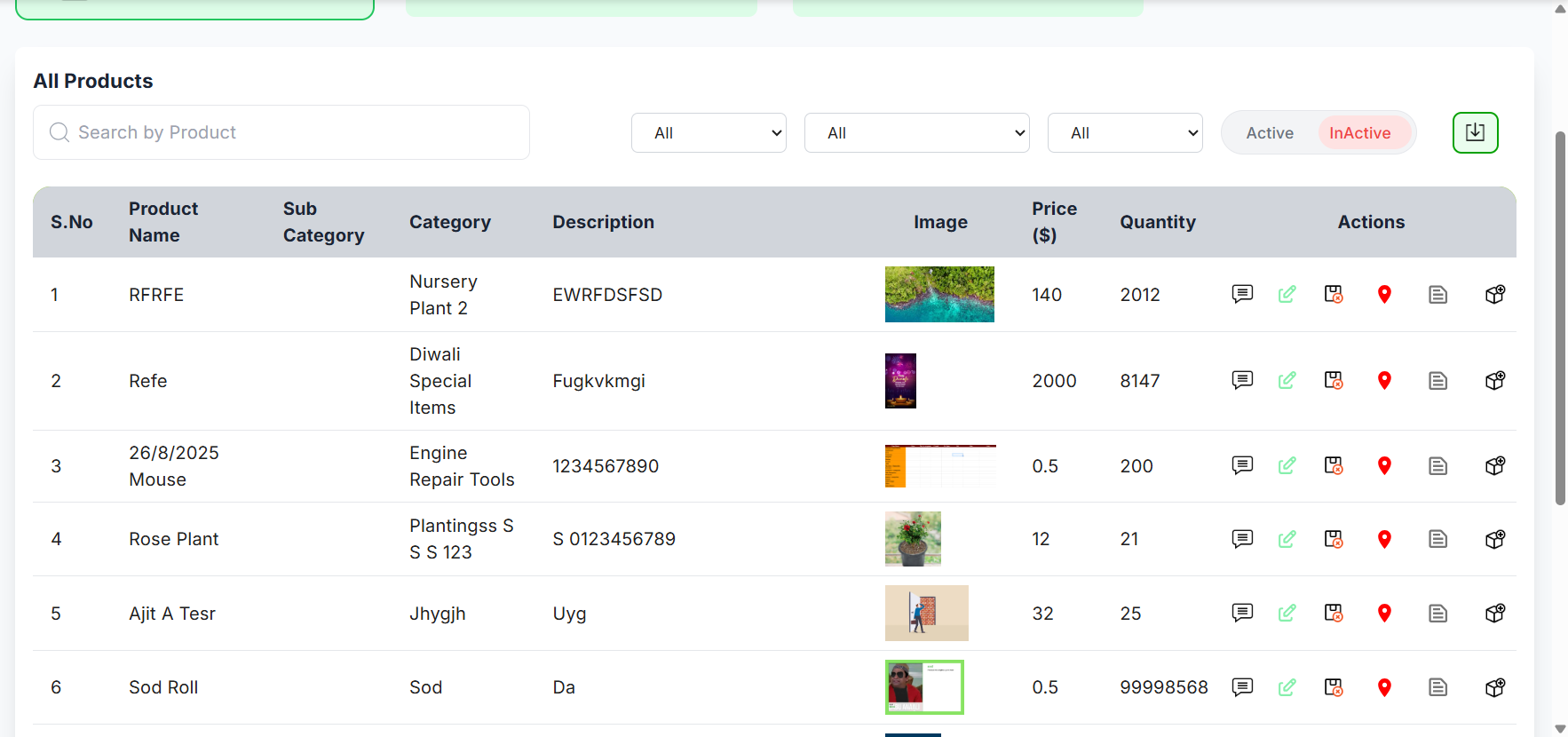
Product Notes and Add Stock
Edit Product
- Re-enter the Product Name.
- Re-upload or upload a new Product Image.
- Re-select the Category and Sub Category from the dropdown menus.
- Select a different Vendor if needed.
- Update the Short Description and Long Description.
- Modify the Price, Offer Price, and Purchase Price.
- Adjust the Quantity, Reorder Quantity, and Restock Level.
- Toggle the Pre-order Available option if needed.
Product Status Update
- Search or select the Product name .
- Select the Status you want to update.
- Write down the note for Status Update
- and Submit
Active Products and Inactive Products
Product Notes and Add Stock
Product Details
- We can view the complete details of the product by clicking a table row
- We can view the complete details of the product by clicking a table row