Sales Management
The Sales module provides a comprehensive overview of all transactions processed through your system, allowing you to monitor sales performance, track customer purchases, and analyze revenue.
✅ Key Features:
- Total Number of Sales: Displays the total count of sales transactions
- Total Sales Amount: Shows the combined revenue from all sales
- Status Filter: Buttons to view only "Paid", "Pending", or "All" sales.
- Search Filter:Search particular user details with "Name" by using search bar
- Date Picker:Filter sales by specific dates.
- Export Option:Click the Export button (top right) to download the current sales data — available in either Excel or PDF format.
- Pagination:
- Use the Prev and Next buttons at the bottom of the table to navigate through pages when there are more than 10 records.
- You can change the number of rows displayed per page by selecting 5, 10, 15, or 20 from the “Rows per page” dropdown menu.
- Instantly view the latest sales records without navigating through multiple pages. The sales table displays the most recent transactions first, allowing you to efficiently monitor ongoing business activity, confirm successful payments, and take quick actions such as printing receipts or reviewing sale details.
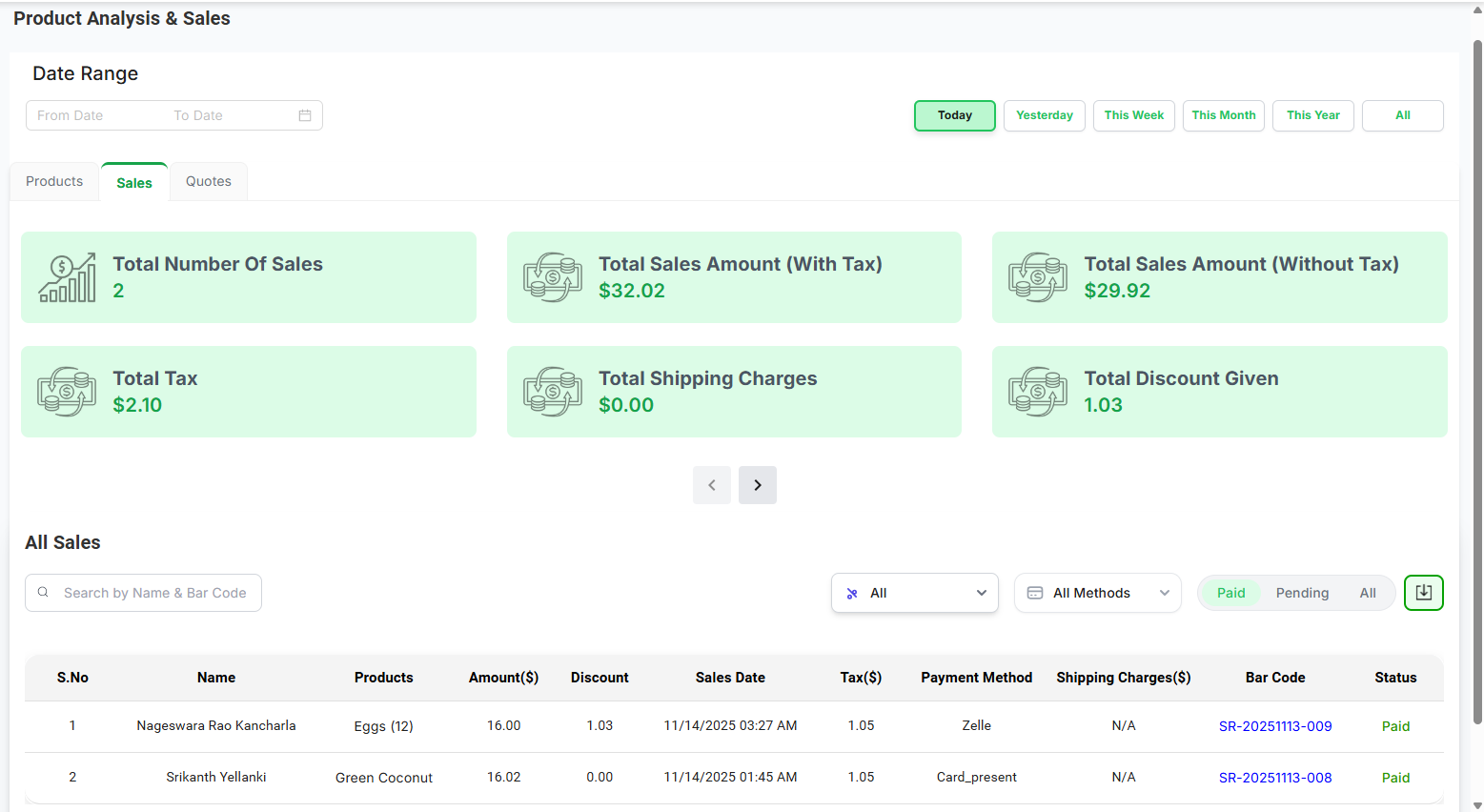
-
View Details: Click on a sale’s record to view detailed
information — including customer name, phone number, sale date,
itemized product list, total amount, tax, shipping, and payment
method. Details are accessible only for sales with a "Paid"
status.
"Print Receipt" option is also available.
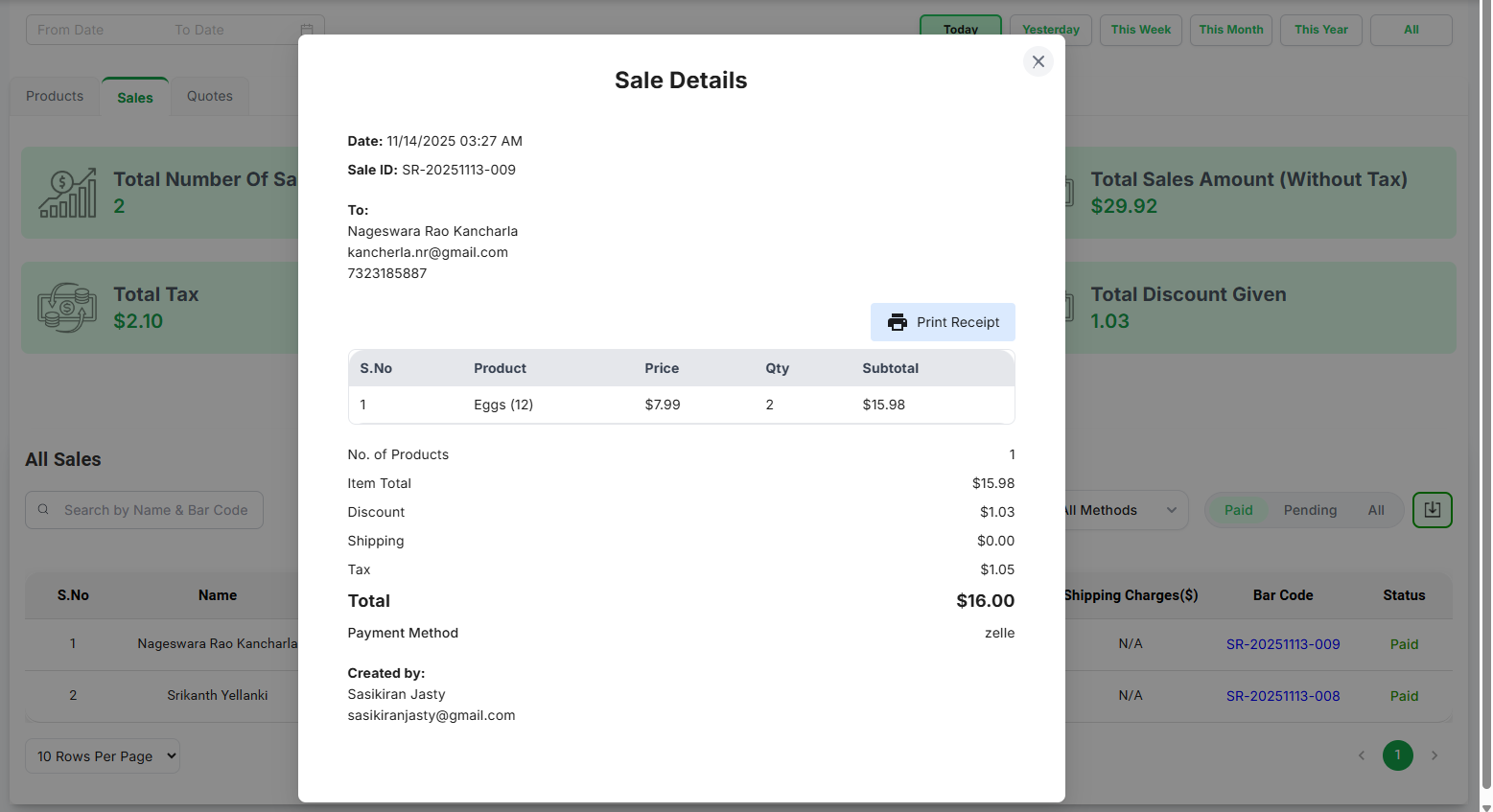
- Print Receipt: After opening the sale details, click the 🖨️Print Receipt button to generate a printable customer receipt with store info, purchase summary, barcode, and total paid amount.
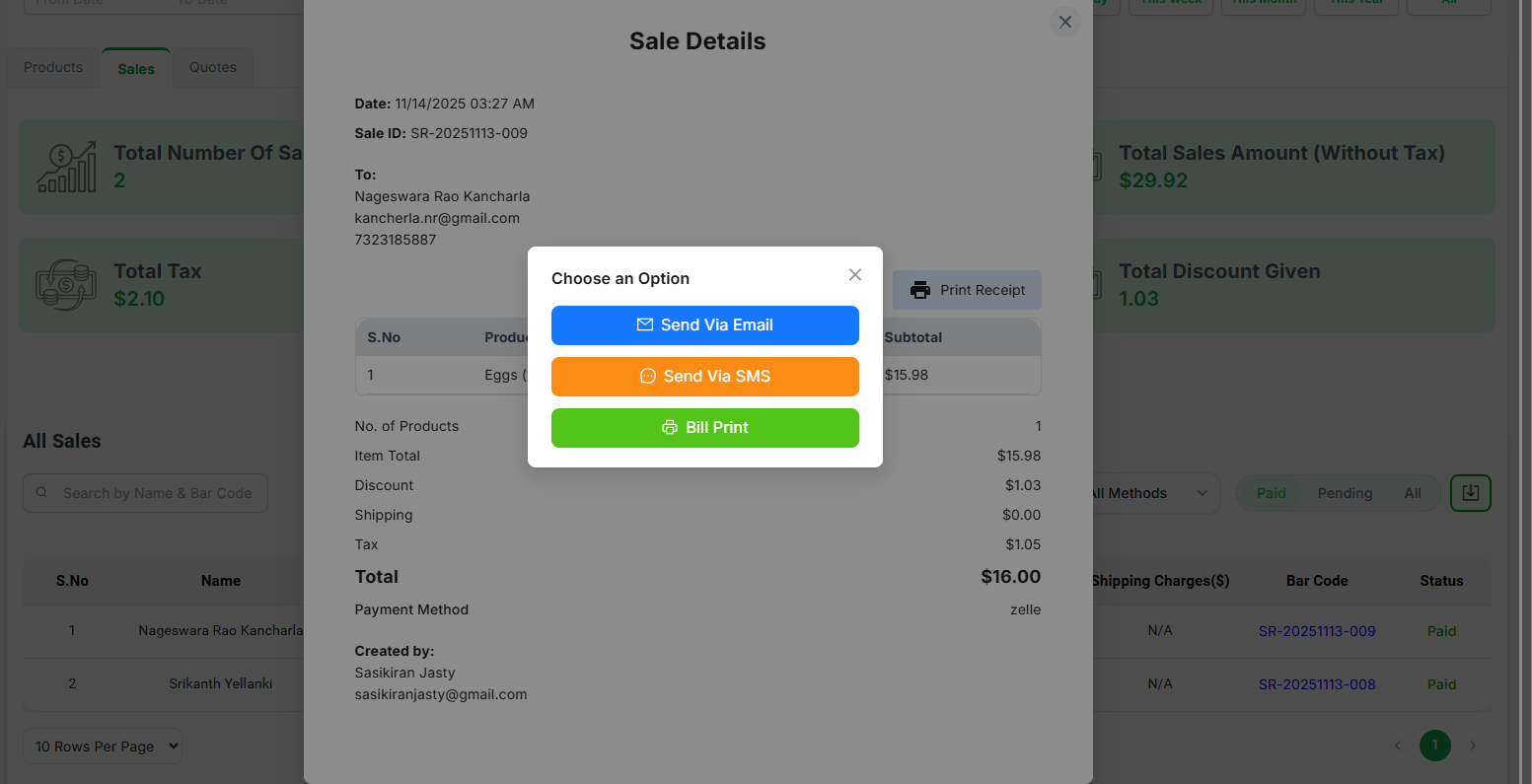

The Sales Dashboard provides a quick and organized overview of all your transaction data. The top section highlights the key performance metrics — helping you understand overall revenue and sales volume at a glance.
- Total Number of Sales: Displays the total count of all completed (paid) sales transactions.
- Total Sales Amount: Shows the cumulative revenue generated from all paid sales.
- These summary cards help you track business performance without digging into detailed records.
- The Status Filter lets you toggle between Paid, Pending, or All sales, so the summary updates accordingly.
- Detailed records are displayed in a table below the summary, offering insights like customer names, products sold, amounts, discounts, taxes, and payment status.
- Clicking a paid sale's Bar Code opens a popup with full details and a breakdown of the transaction.
- From the details popup, you can click 🖨️ Print Receipt to generate a printable receipt containing customer details, purchase summary, and barcode.
The Products Dashboard offers a comprehensive overview of all product sales transactions processed through your system. It allows you to monitor product performance, track sales trends, and analyze revenue generated from each product.
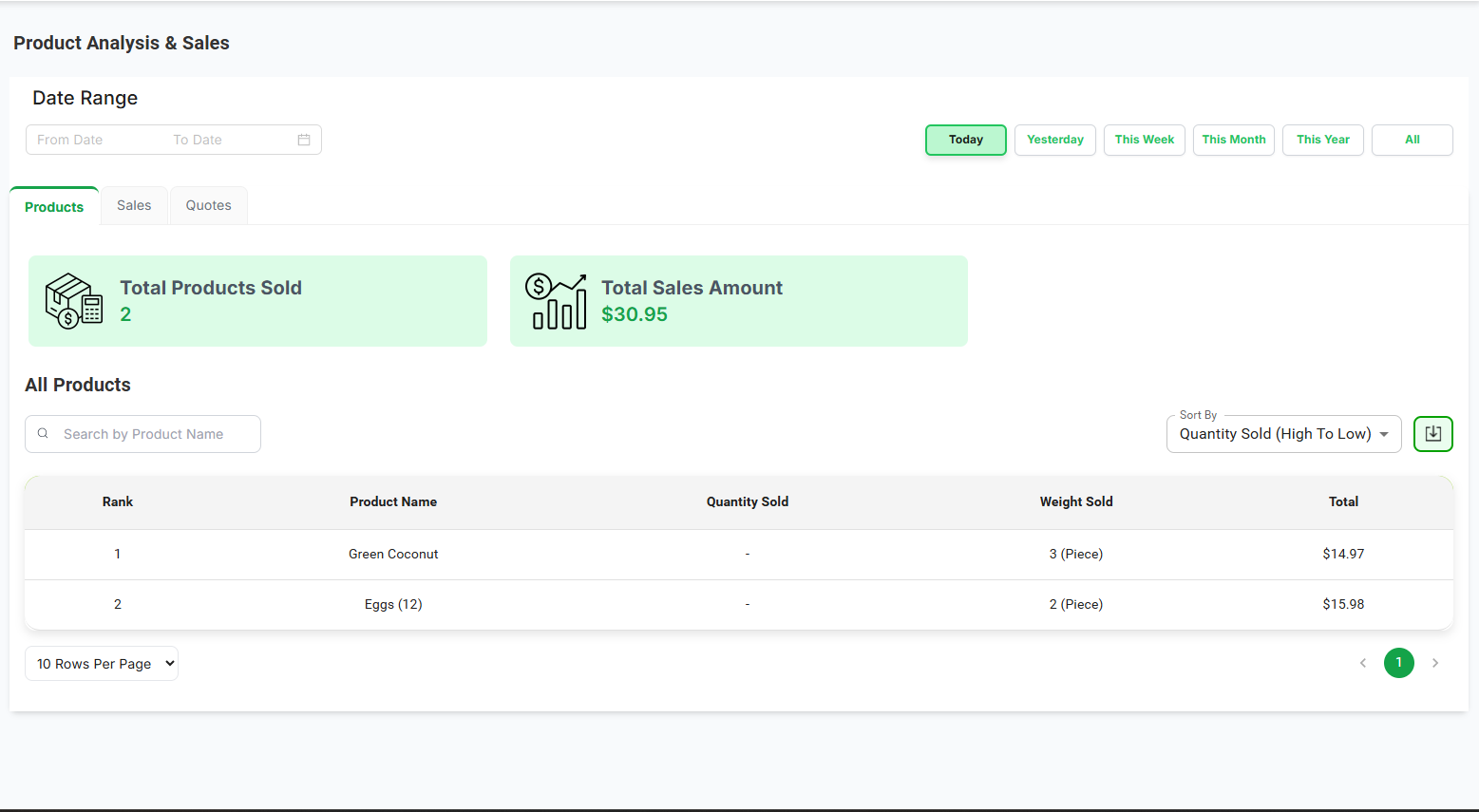
- Product Name : Displays the name of each product sold.
- Quantity Sold : Shows the total number of units sold for each product.
- Total Sales Amount : Displays the total revenue generated from each product.
- Search by Product Name : Search products using product names.
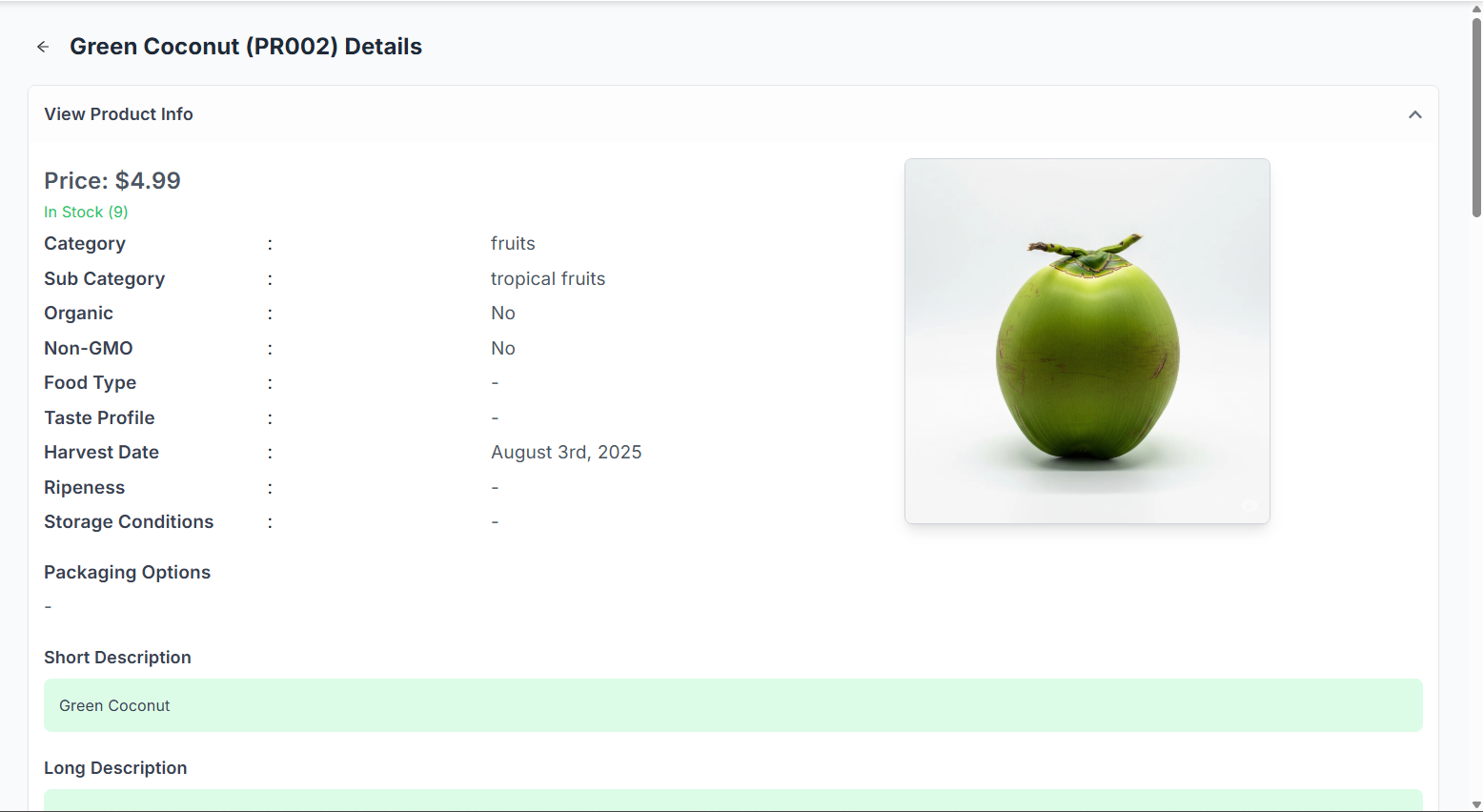
- View Product Info : Click on the product name to view detailed information about the product, including sales trends, customer reviews, and inventory status.
Navigate through partner records efficiently:
- Use the rows per page dropdown (▼) to select display density
- Default shows 10 rows per page (e.g., 5, 10, 15, 20)
- Use pagination controls when you have more vendors than fit on one page (e.g., Prev, Next)

✅ Key Features:
- Track Sales Returns: View the total number of processed return transactions at a glance.
- Monitor Refund Totals: Instantly see the total refunded amount updated in real-time.
- Search Made Simple: Easily search for returns using customer name or phone number.
- Process Returns: Click the + Sales Return button to initiate a new return and issue a refund.
- Action Controls: Use the Revert button to reverse a return if needed.
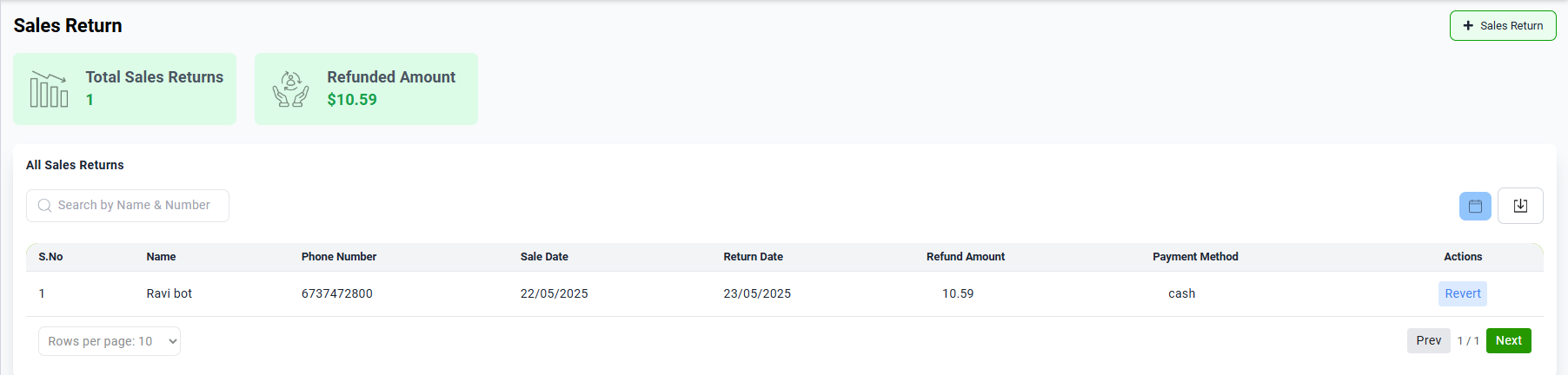
- when you click the + Sales Return button, a modal (popup) titled "Search Sales" appears.
- A user must enter a valid receipt ID here.
- There is also a small QR code icon, possibly indicating QR scanning functionality to auto-fill the receipt ID.
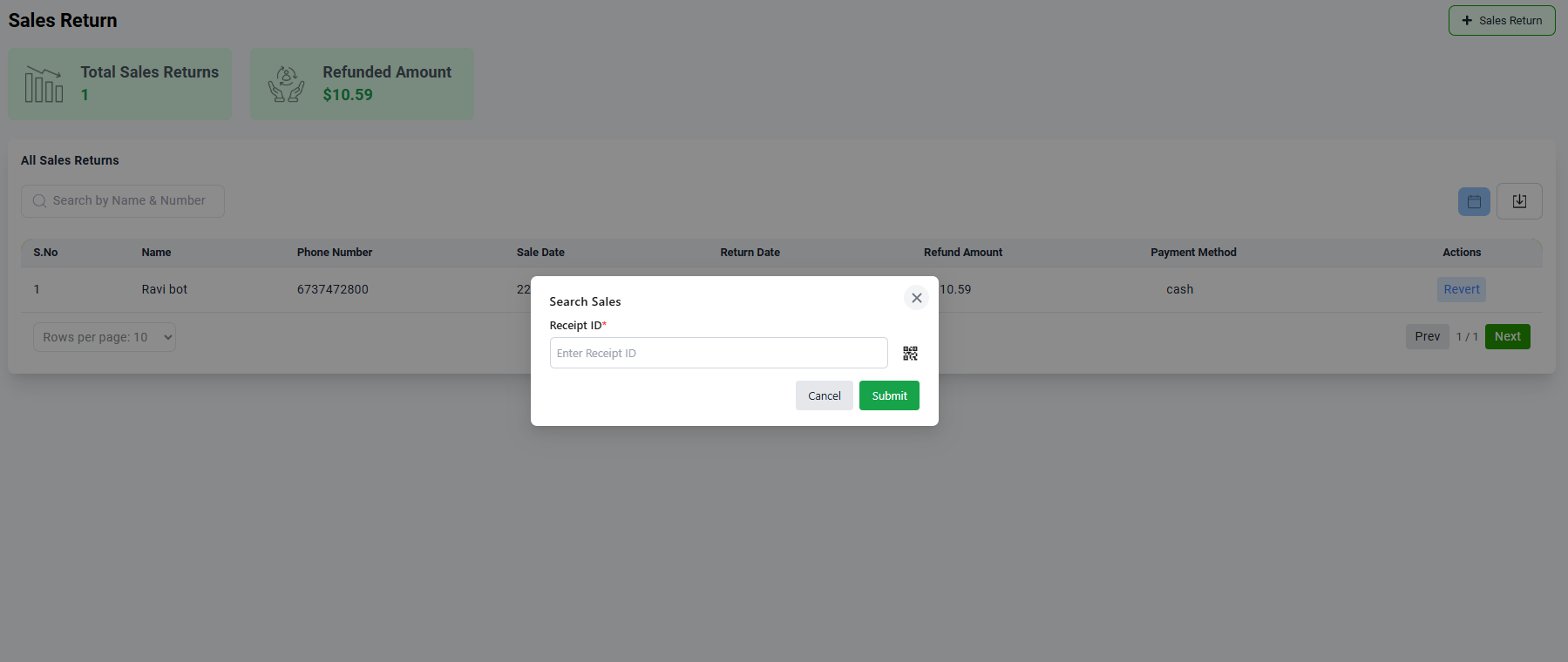
The dashboard displays two key metrics at the top:
- Total Sales Returns: Count of all processed return transactions
- Refunded Amount: Total monetary value of all refunds issued
✅ How to process a return:
- After entering the receipt ID and submitting, the system fetches the related order and displays a detailed popup titled Return Order.
- On the left side, you will see the customer details including name, email, and phone, as well as a list of purchased items with columns for product name, price, quantity, and total.
- Next to each item, there's a "Return" button allowing you to select which products you want to return.
- Once you select items to return, the Return Summary on the right side updates automatically, showing return quantity, subtotal, tax, discount, and total refund amount.
-
Below the summary, the Return Reason* dropdown is a required
field. It contains the following predefined options:
- Wrong Item – if the customer received an incorrect product
- Damaged Item – if the product is defective or broken
- Not as Described – if the product doesn’t match its description
- Other – for any other reason not listed
- A Note field is provided where the user can type any additional information about the return.
- A Payment Method dropdown lets the user choose how the refund will be processed (e.g., cash, credit, refund to wallet).
- Once all details are filled, the user clicks Process Return to finalize the return, or Close to cancel and exit the modal.
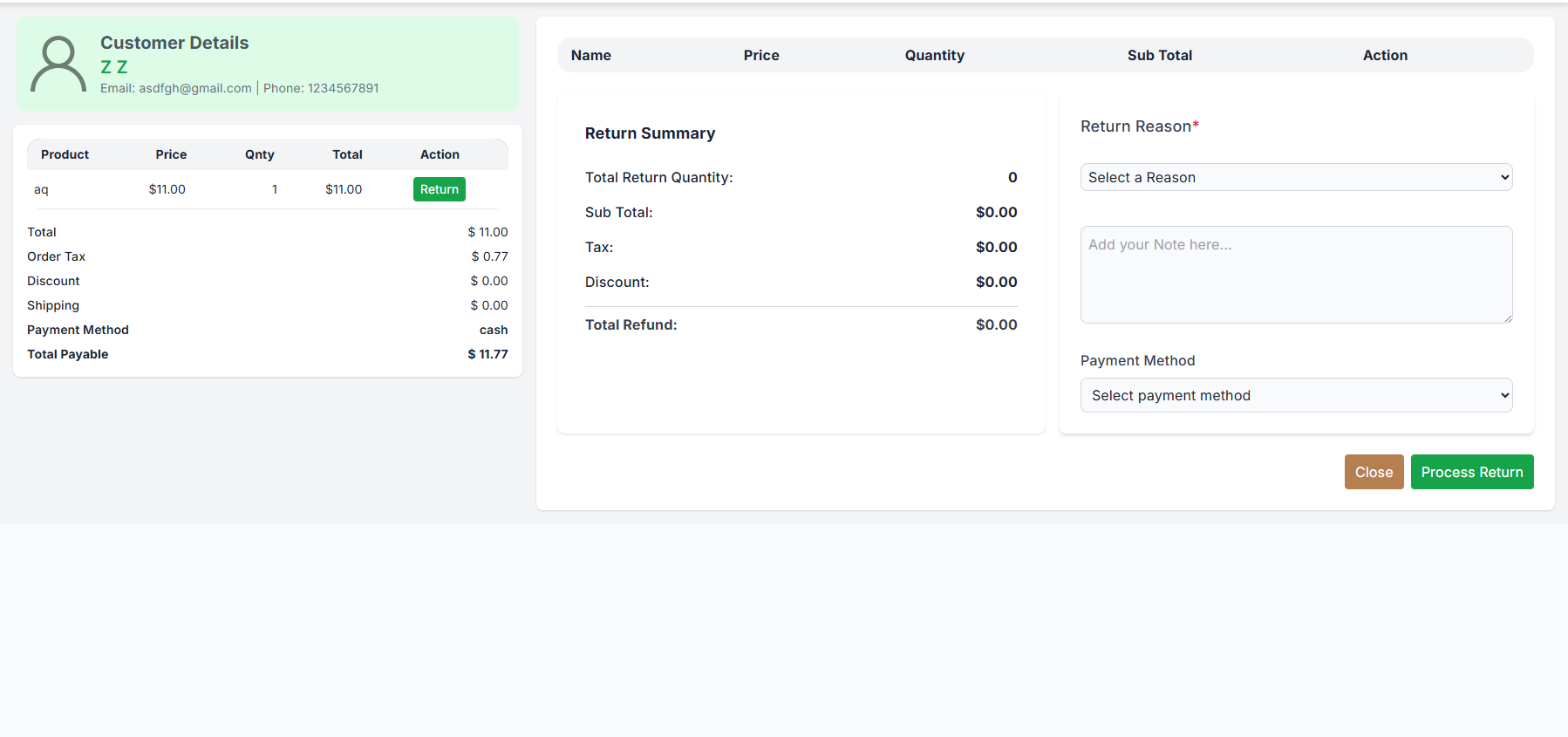
The Returns table displays key information about processed returns:
- Sale: Reference number of the original sale
- Name: Name of the customer who initiated the return
- Phone Number: Customer’s contact number
- Sale Date: Date of the original transaction
- Return Date: Date on which the return was submitted
- Refund Amount: Total amount refunded for the return
- Payment Method: Refund method chosen (Cash, Credit, Wallet, etc.)
- Return Reason: Selected reason for the return (e.g., Damaged, Wrong Item)
- Actions: Available operations such as Revert to undo the return
Navigate through partner records efficiently:
- Use the rows per page dropdown (▼) to select display density
- Default shows 10 rows per page (e.g., 5, 10, 15, 20)
- Use pagination controls when you have more vendors than fit on one page (e.g., Prev, Next)