Services Management
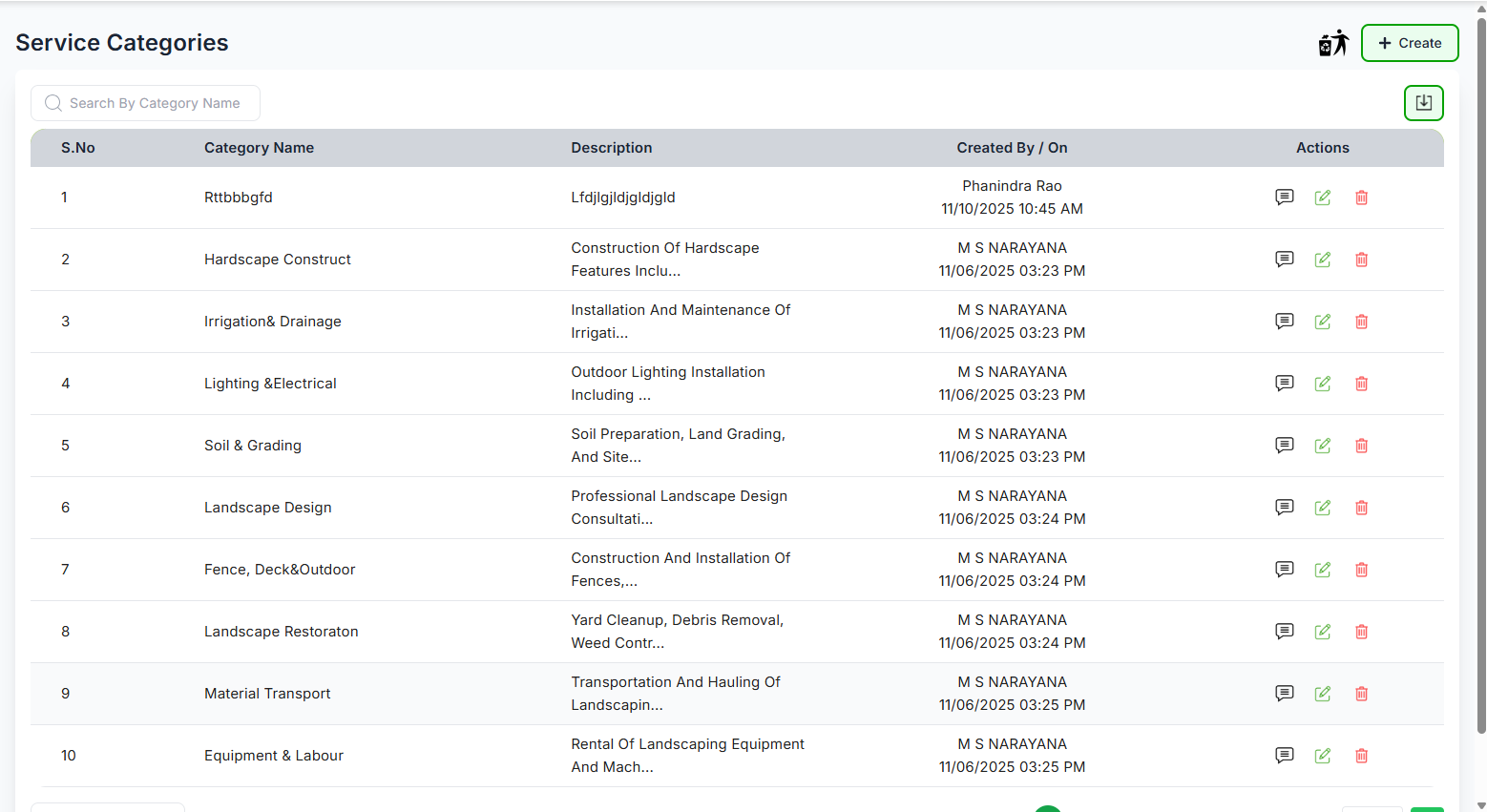
The Services module is used to manage various service categories offered by the business, such as landscaping, hardscaping, fencing, or other construction/maintenance services.
✅ What you can do here:
- View list of available service categories
- You can search service categories by name in search bar
-
Click the "
 " icon to view the service categories which are deleted.
- Create new service by clicking " + Create "
-
The
"
 " icon refers to Action History if you hover on it the
whole actions performed on that table record is shown.
" icon refers to Action History if you hover on it the
whole actions performed on that table record is shown.
-
The
"
 "
icon refers to edit the category you can Edit the
category
"
icon refers to edit the category you can Edit the
category
-
The
"
 "
icon refers to delete the category you can Delete the
category , leave a reason for deletion in comment.
"
icon refers to delete the category you can Delete the
category , leave a reason for deletion in comment.
-
You can control how many records are to bedisplayed in the table by
selecting "Rows Per Page". Use the
Previous
and Next buttons to navigate between pages.
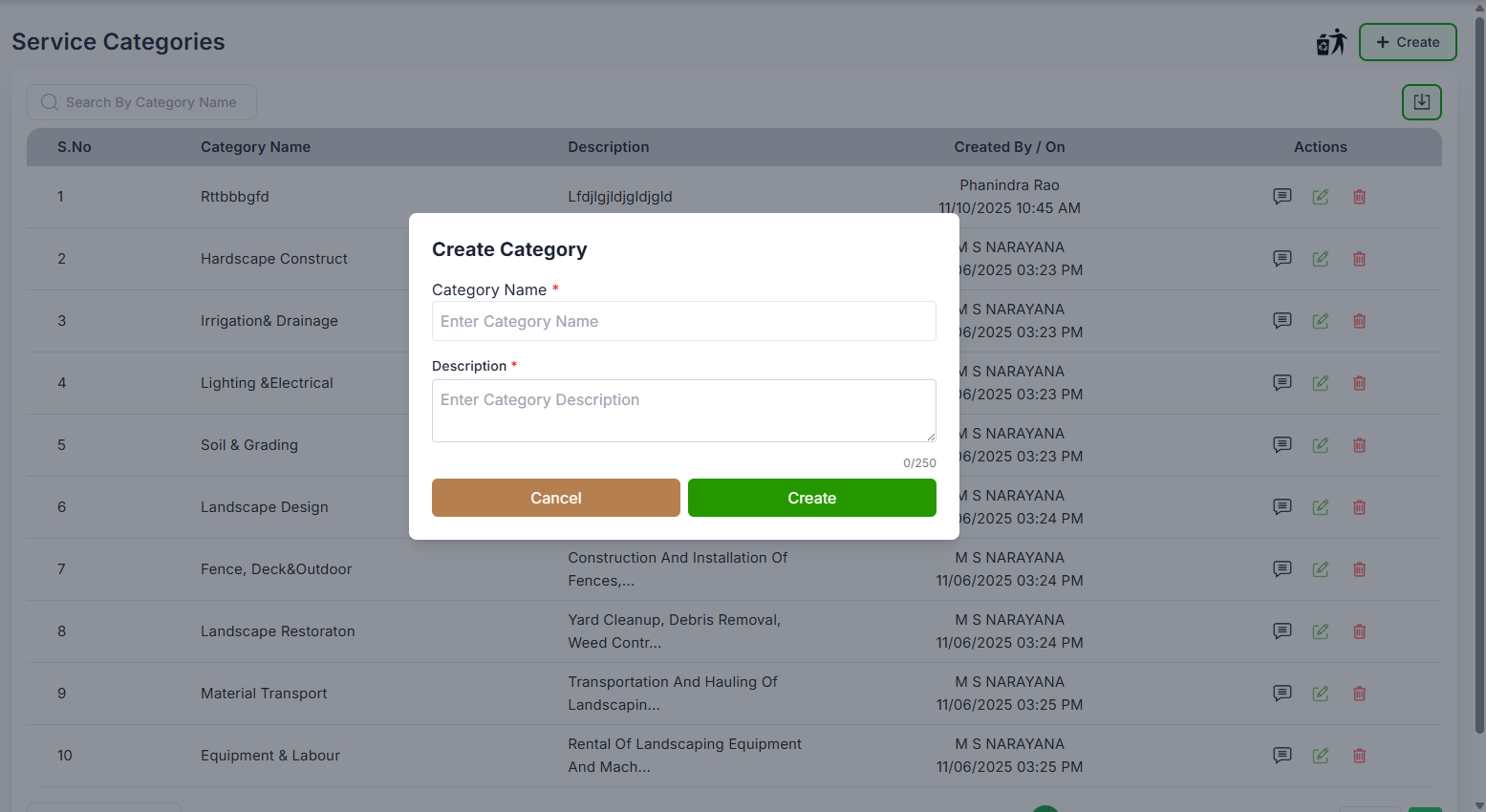
When the user clicks the “Create” button (top-right), a popup modal appears.
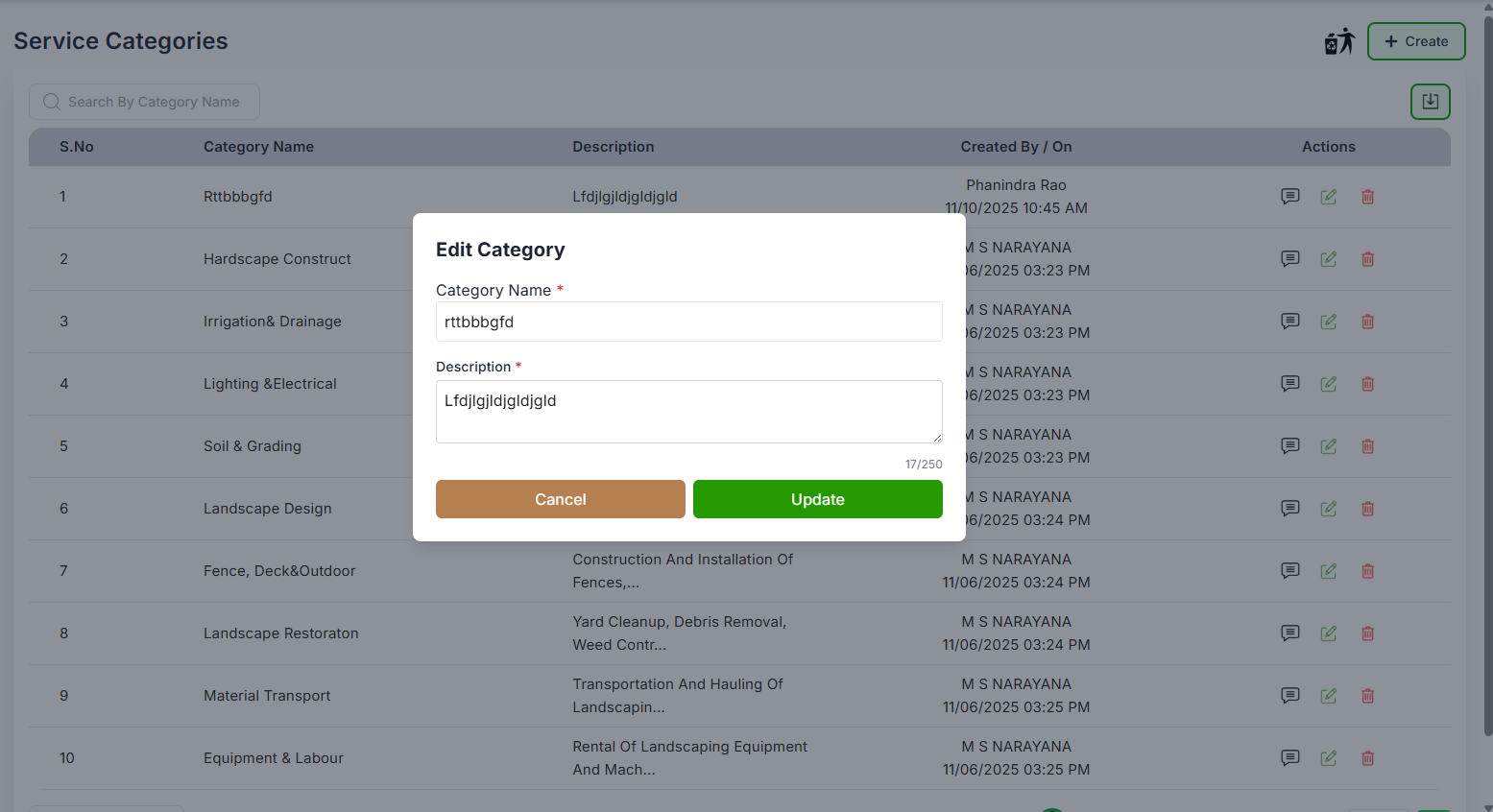
When the user clicks the “Edit” button on the table record, a popup modal appears.
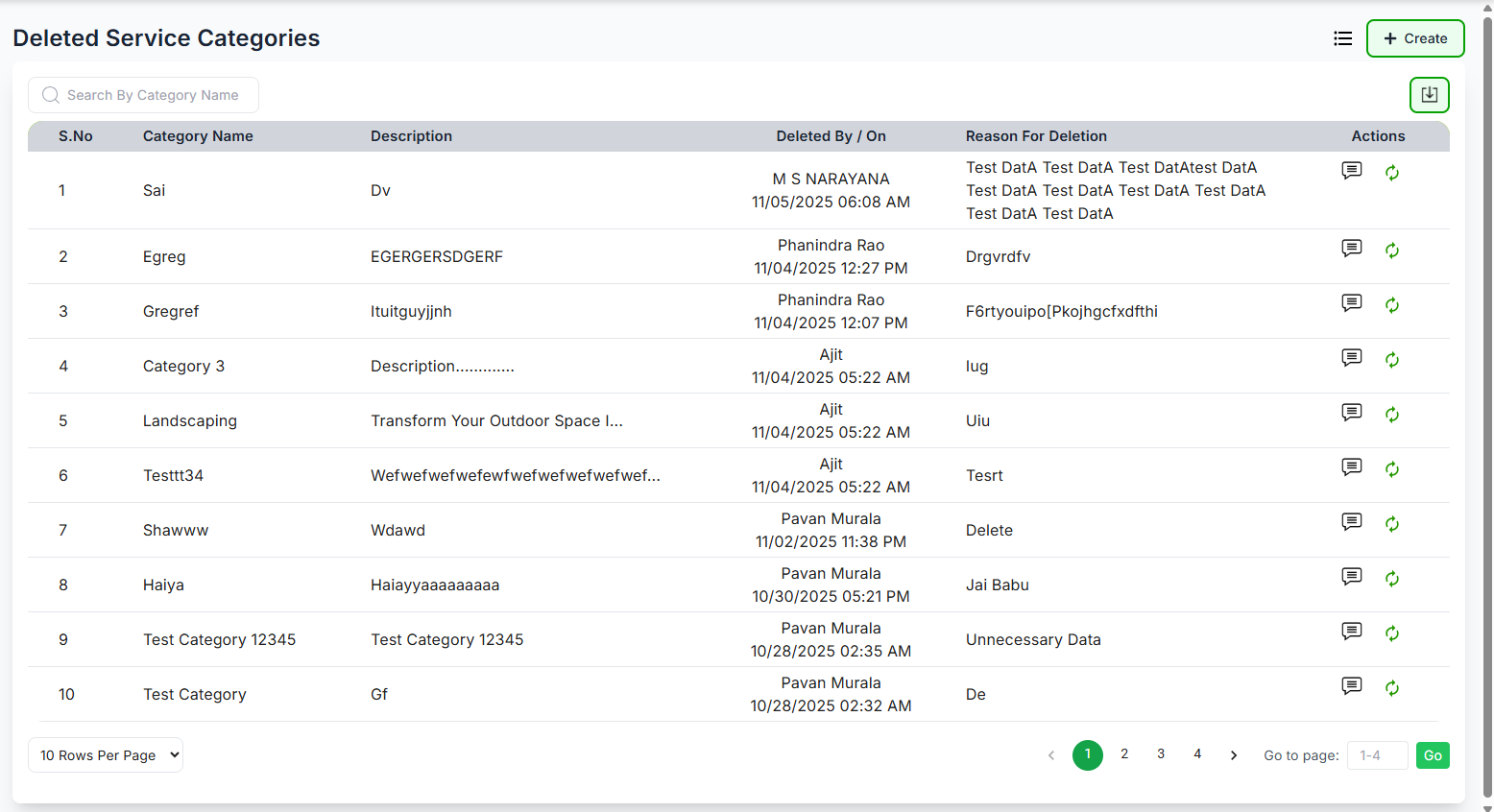
When the user clicks the "" button on the (top-right) beside create we are able to view
deleted sub categories.
Navigate through partner records efficiently:
- Use the rows per page dropdown (▼) to select display density
- Default shows 10 rows per page (e.g., 5, 10, 15, 20)
- Use pagination controls when you have more vendors than fit on one page (e.g., Prev, Next)

✅ What you can do here:
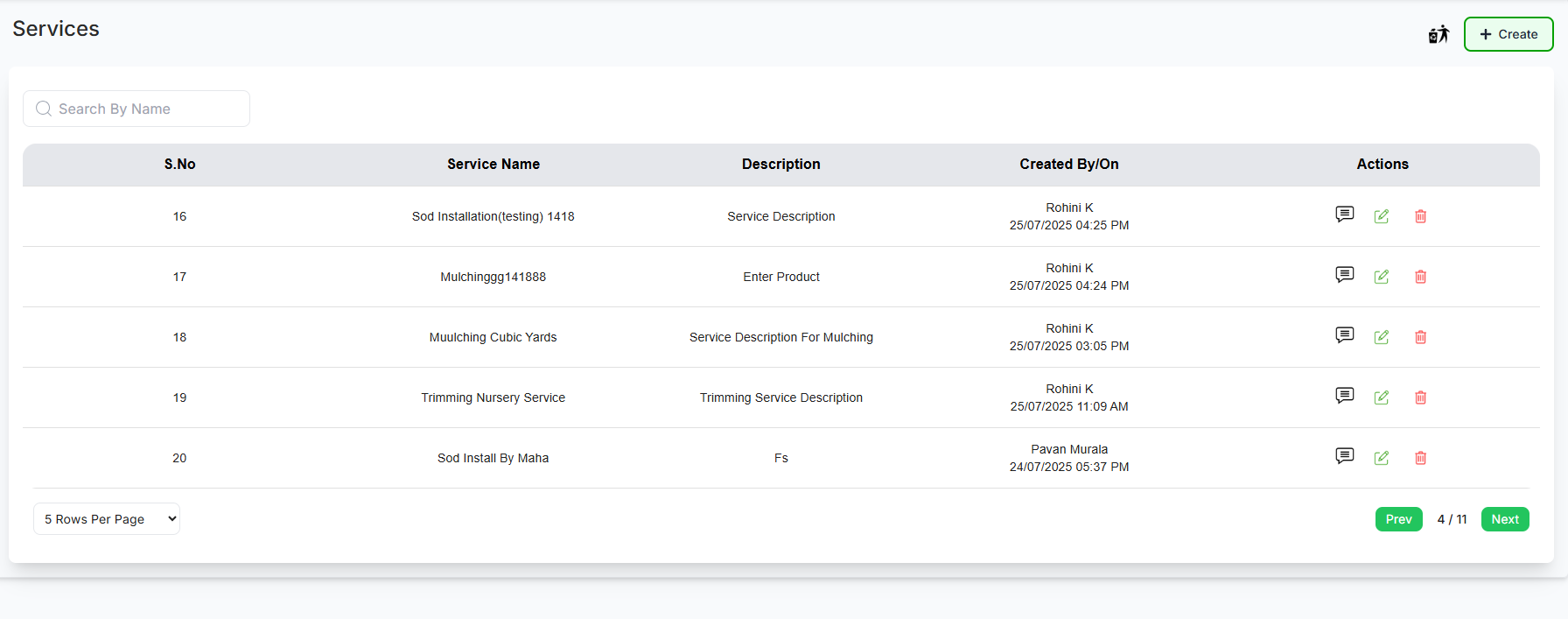
- View all existing services with their descriptions.
- Search for a particular service by name using the search bar.
- Click the green “+ Create” button to add a new service.
-
Click the "" icon to view deleted services.
✅ Actions
-
Click the "" icon to view Action History of any particular service.
-
Click the "" icon to edit any particular service.
-
Click the "" icon to delete any particular service.
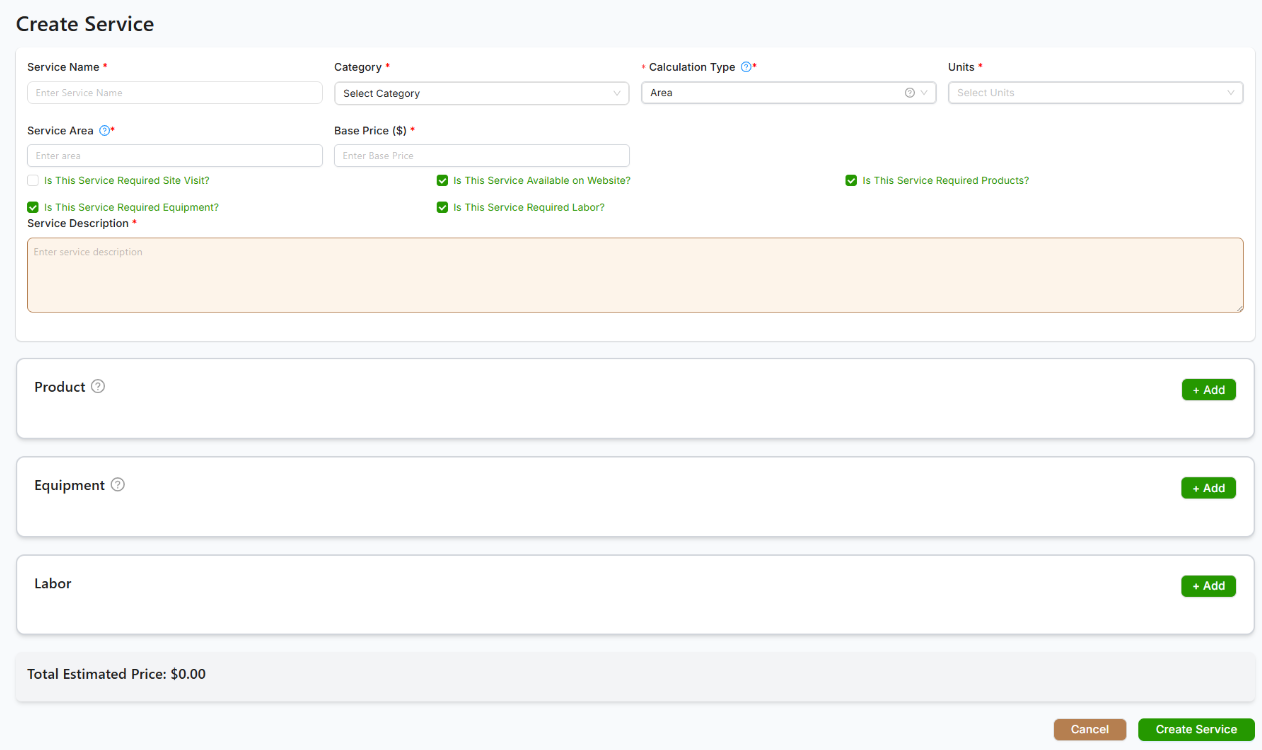
✅ Create Service
Gracefully design a new service by elegantly completing the form with essential details.
- Service Name: Enter a distinctive service name in the provided text field. This is a compulsory field.
- Category: Select a suitable category from the dropdown menu to organize the service with finesse. This is a required field.
- Calculation Type: Choose an appropriate calculation type (e.g., Area) from the dropdown menu to define the service's measurement elegantly.
- Units: Pick the relevant units (e.g., per hour, per item) from the dropdown list. This field is mandatory.
- Service Area: Input the service area gracefully in the designated text field. This is a required field.
- Base Price ($): Enter the base price for the service using numeric values exclusively. This is a compulsory field.
-
Service Availability:
- Check “Is This Service Required Site Visit?” if a physical site visit is essential.
- Check “Is This Service Available on Website?” if the service is offered online with elegance.
-
Service Requirements:
- Check “Is This Service Required Equipment?” if equipment is necessary.
- Check “Is This Service Required Products?” if products are involved.
- Check “Is This Service Required Labor?” if labor is required.
- Service Description: Craft a clear and detailed description in the text area to eloquently outline the service's scope. This is a mandatory field.
- Associated Resources: Utilize the + Add buttons under Product, Equipment, and Labor sections to seamlessly link relevant items or resources to the service.
- Submit or Cancel: Click Create Service to save the new service with grace or Cancel to discard and exit the form. Admire the Total Estimated Price for a refined cost overview.
✅ Deleted Services
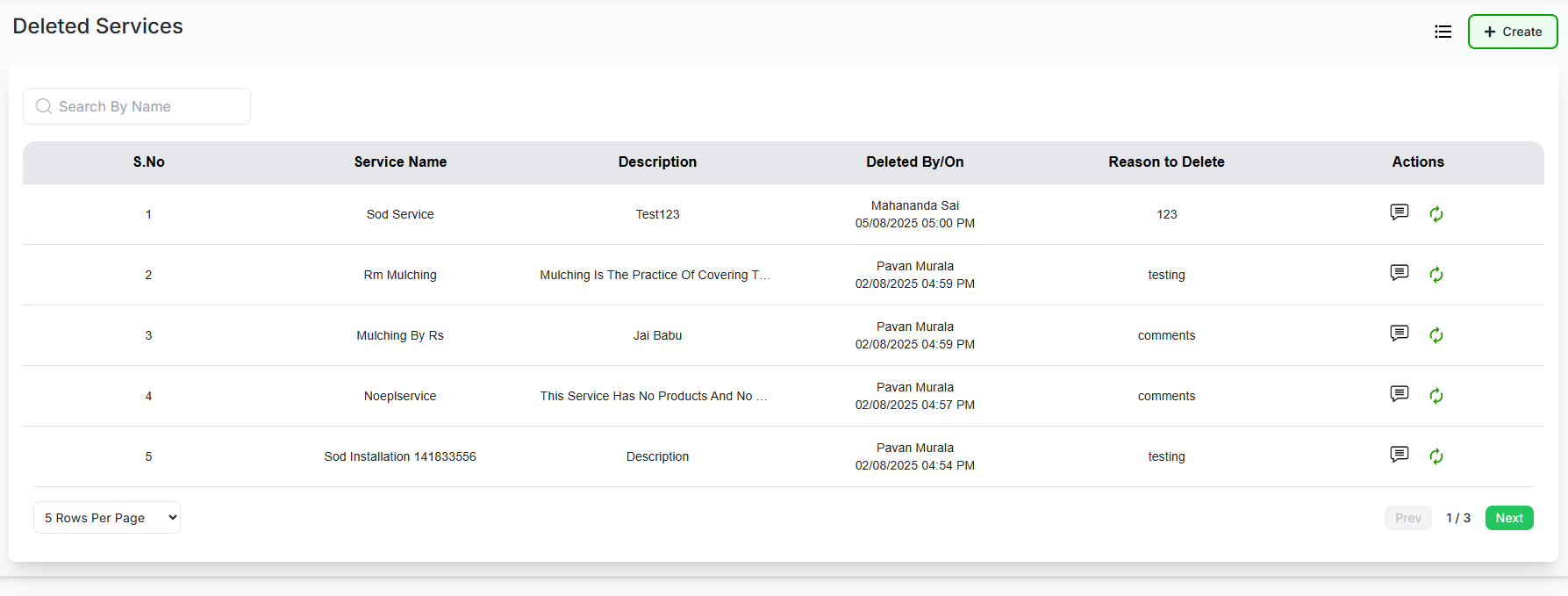
Click th "" icon to view the list of deleted services, where you can also
effortlessly restore them as required.
- View Deleted Services: Access the comprehensive list of services that have been removed.
- Search by Name: Utilize the search bar to find specific deleted services by name.
-
Service Information:
- Service Name: Name of the deleted service.
- Description: Brief overview or details of the service.
-
Deletion Details:
- Deleted By/On: Information on who deleted the service and the date/time.
- Reason to Delete: Reason provided for the service's deletion (if applicable).
-
Actions:
- Comments: View or add comments related to the deleted service.
- Restore Service: Click the restore icon to reinstate the deleted service.
✅ Service Details
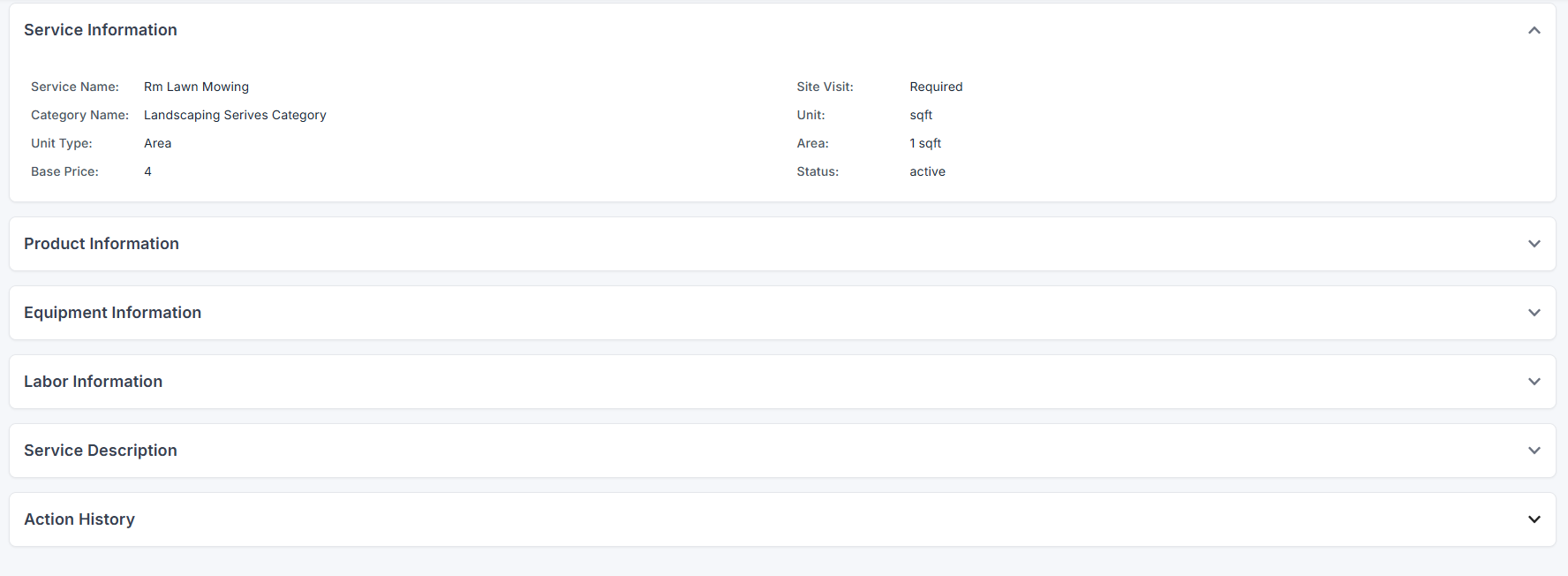
Click on the service name to elegantly explore detailed information about the service, encompassing Service Information, Product Information, Equipment Information, Labor Information, Service Description, and Action History.
- Service Information: Review essential details such as the service name, category, unit type, base price, site visit requirement, area, and status.
- Product Information: Access details related to the products associated with the service.
- Equipment Information: Explore information about the equipment linked to the service.
- Labor Information: View details pertaining to the labor involved in the service.
- Service Description: Read a comprehensive description outlining the service's scope and purpose.
- Action History: Trace the refined history of actions performed on the service.
Navigate through partner records efficiently:
- Use the rows per page dropdown (▼) to select display density
- Default shows 10 rows per page (e.g., 5, 10, 15, 20)
- Use pagination controls when you have more vendors than fit on one page (e.g., Prev, Next)