Vendor invoice Management
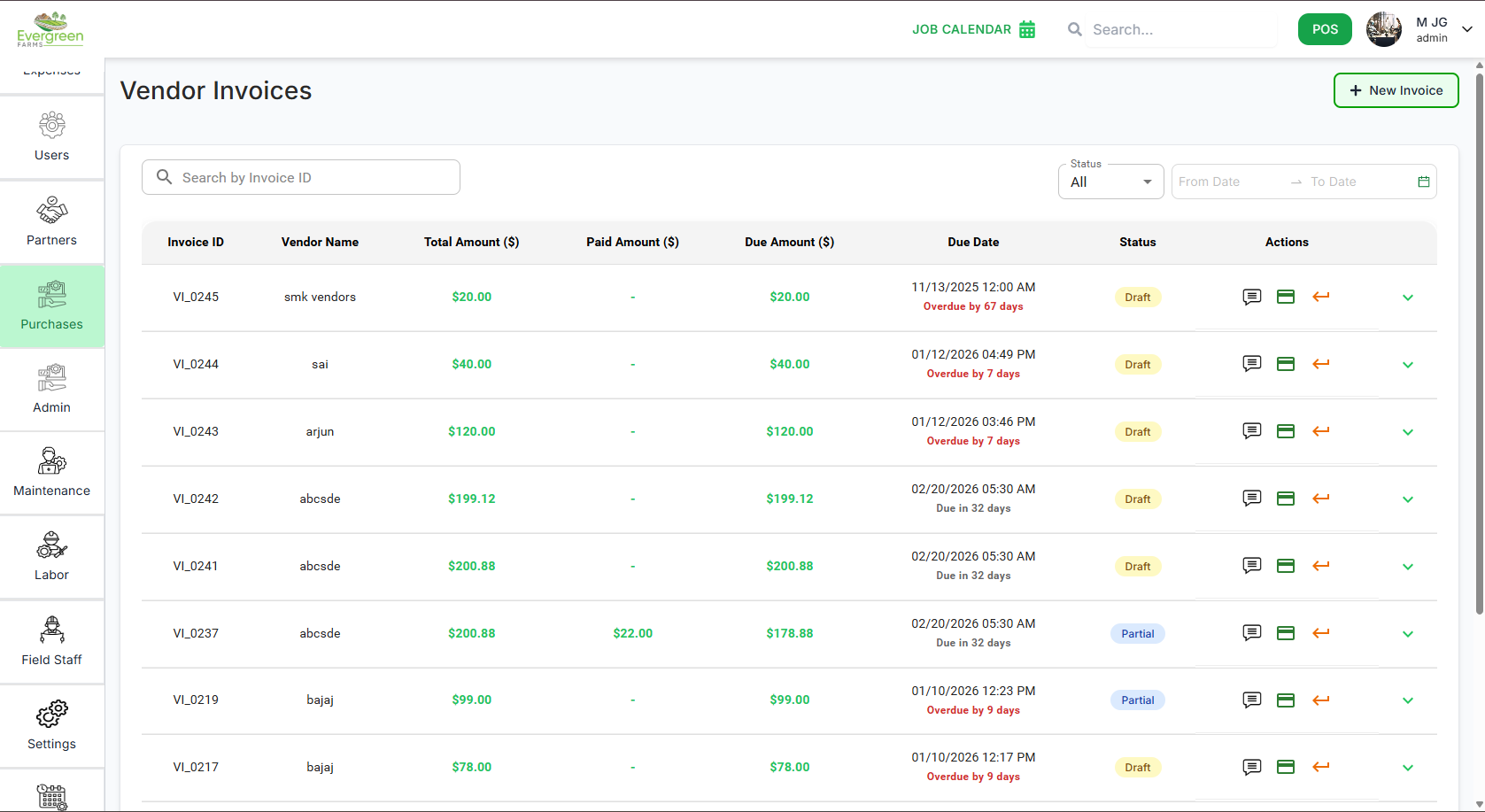
Efficiently manage your vendor invoices with our comprehensive Vendor Invoice Management module. This feature allows you to keep track of all vendor-related transactions, ensuring timely payments and accurate record-keeping.
Vendors invoices Dashboard
Key Features:
- Vendor List: View a comprehensive list of all vendors, including their invoice history.
- Add New Vendors: Easily add new vendors to your system with detailed information such as name, contact person, phone number, and vendor type (Service or Purchase).
- Search and Filter: Quickly find vendors using the search bar or filter by vendor type to streamline your workflow.
- Date: Keep track of invoice dates for accurate record-keeping and timely payments.
- Vendor Details: Access detailed profiles for each vendor, including ratings, contact information, purchase details, and transaction history.
Actions
-
Comments: Click the "
 " icon to access the updated history.
-
record payment: Click the "
 " icon to log payments made to vendors.
-
Return product to vendor: Click the "
 " icon to initiate a product return process.
Adding a New Invoice
Step-by-Step Guide:
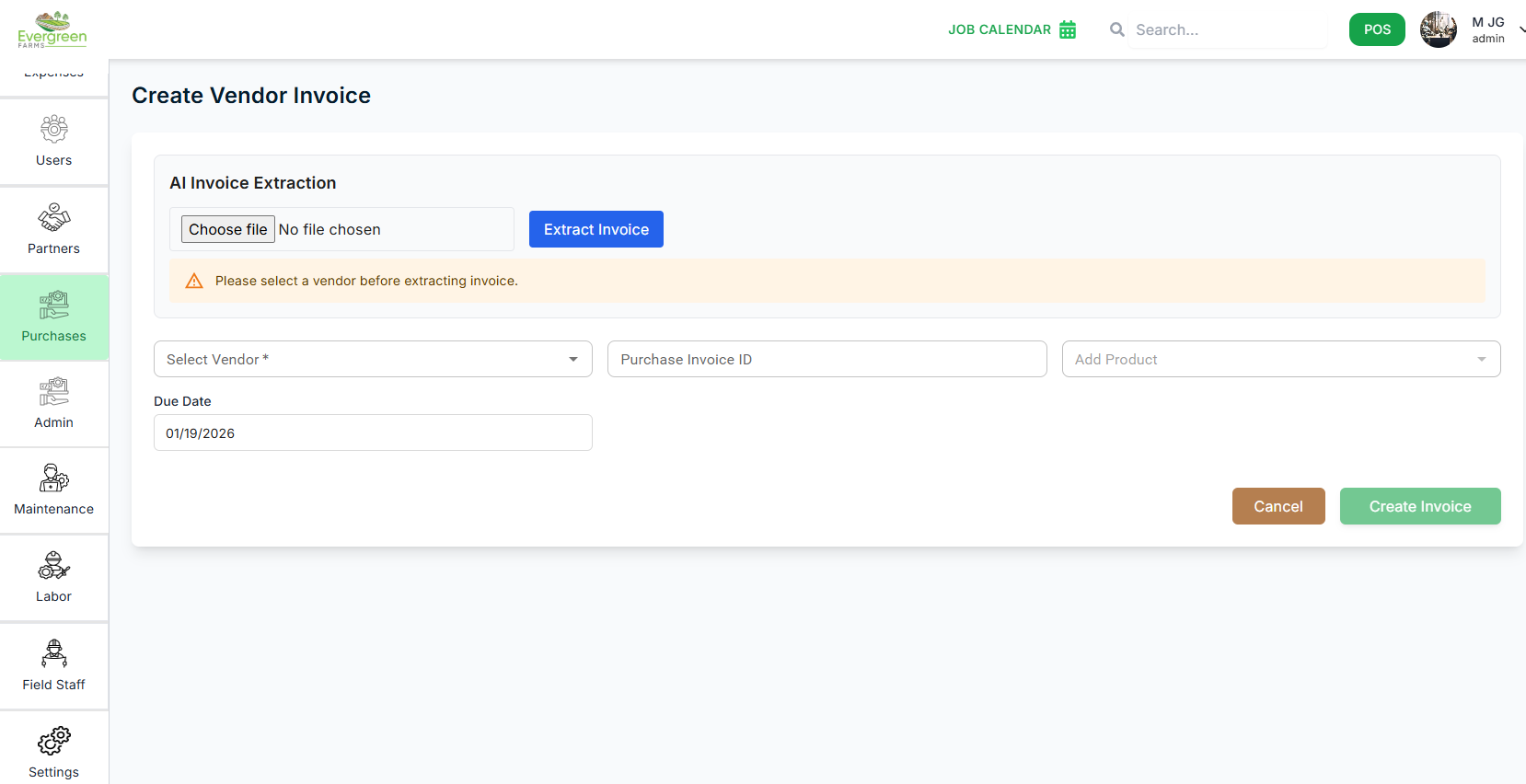
- Access the Create Invoice form by clicking the "Add Invoice" button
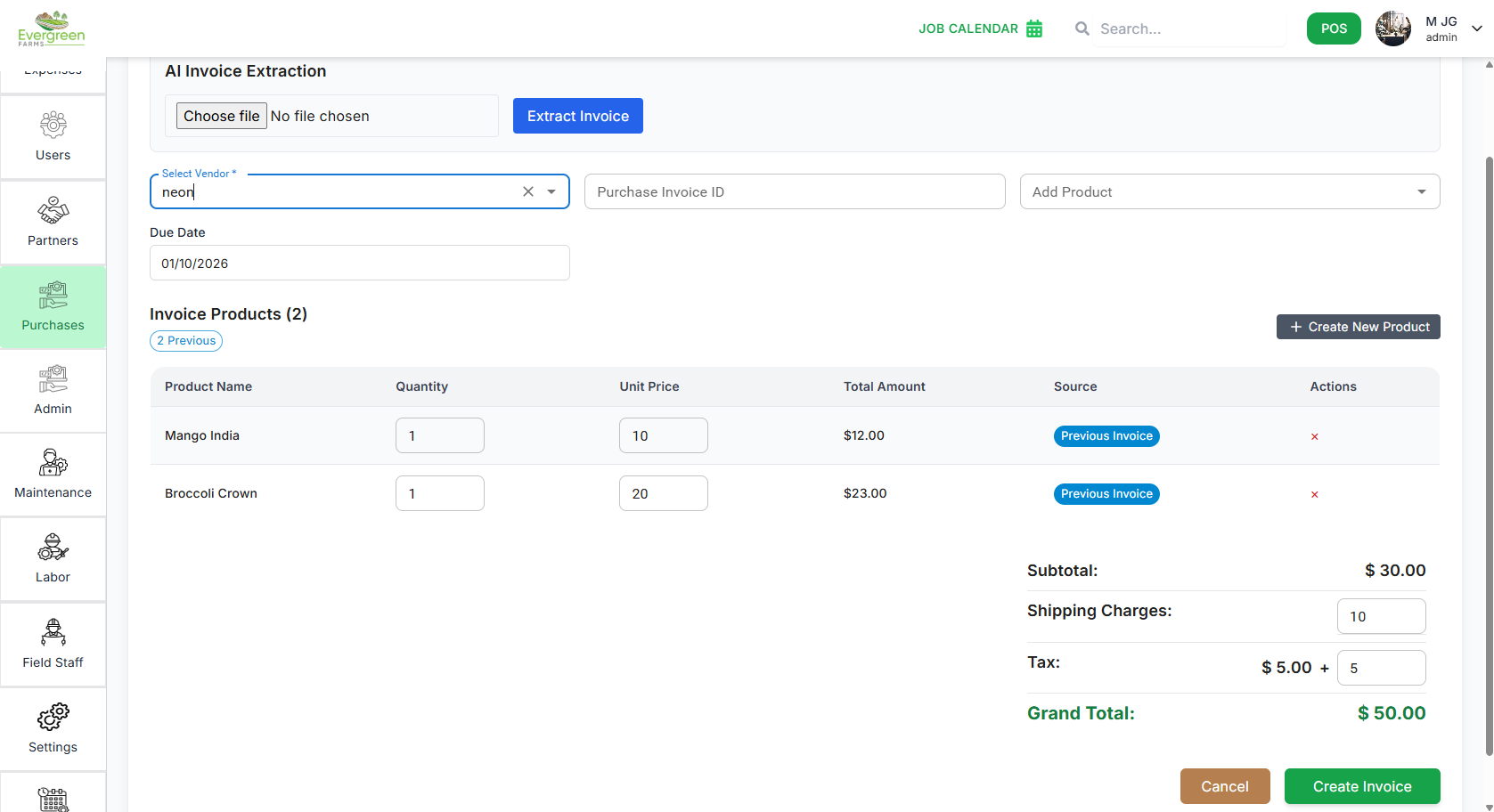
- select vendor: Choose an existing vendor from the dropdown or click "Add New Vendor" to create a new vendor record
- And then choose file : choose the file what contains the invoice details
- Add product: Select products associated with the vendor from the dropdown list
- Save the vendor record by clicking "Submit"
Searching and Filtering
Efficient Vendor Lookup:
- Search Bar: Type in keywords such as vendor name or contact person to quickly locate specific vendors.
- Search by Date: Use the date picker to filter vendors based on invoice dates.
Vendor invoice Details
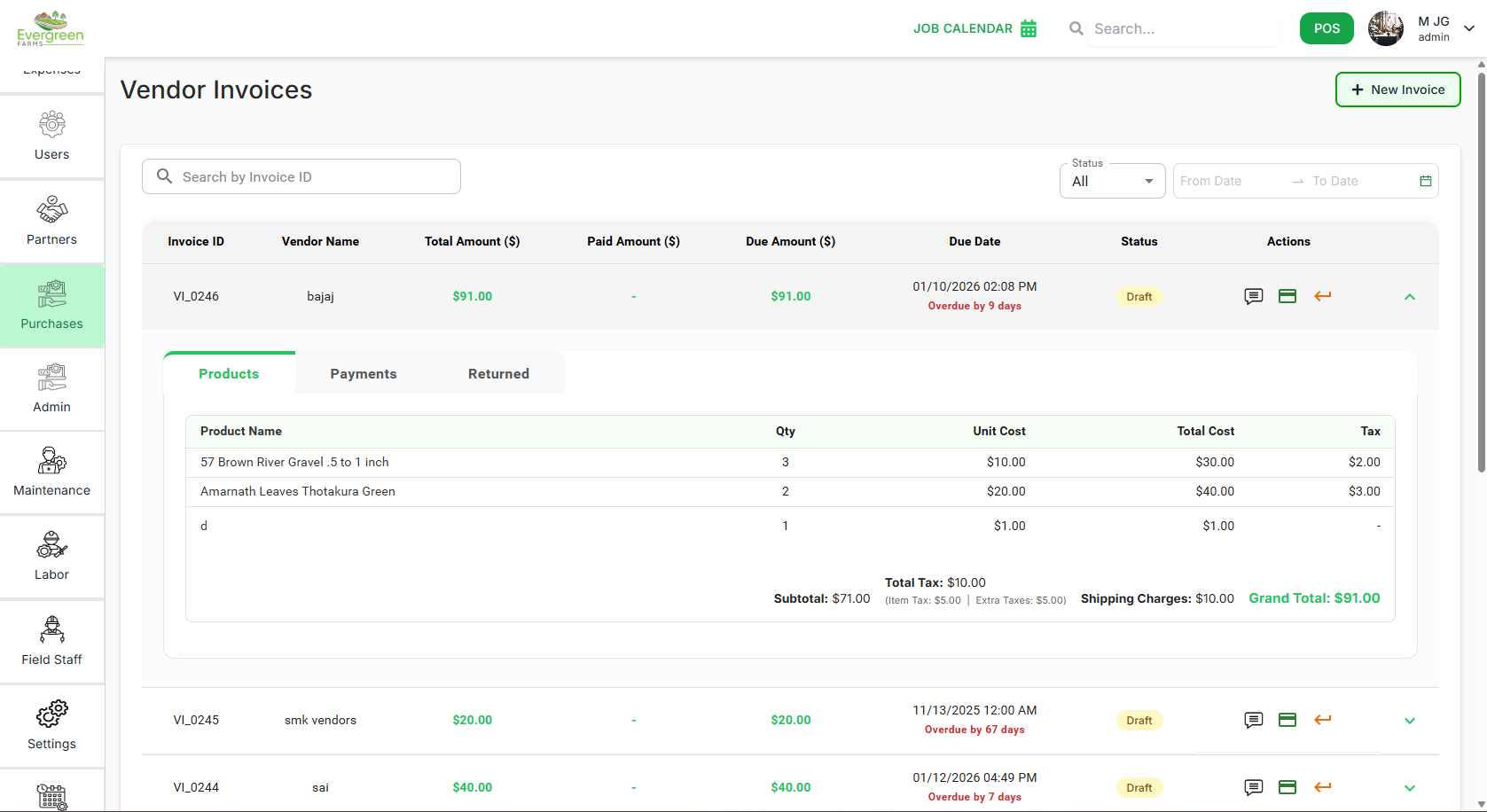
Click on a vendor's name to access detailed information about their profile and transaction history.
- Products :its shows the product list which is purchased from the vendor.
- Payments : its shows the payment history made to the vendor.
- Returned : its shows the returned product details to the vendor.
Pagination Controls
Navigate through partner records efficiently:
- Use the rows per page dropdown (▼) to select display density
- Default shows 10 rows per page (e.g., 5, 10, 15, 20)
- Use pagination controls when you have more vendors than fit on one page (e.g., Prev, Next)

Best Practices
Vendor Management Tips:
- Regularly update vendor information to ensure accuracy and reliability.
- Monitor invoice statuses to avoid late payments and maintain good vendor relationships.
- Utilize search and filter features to quickly access vendor records as needed.